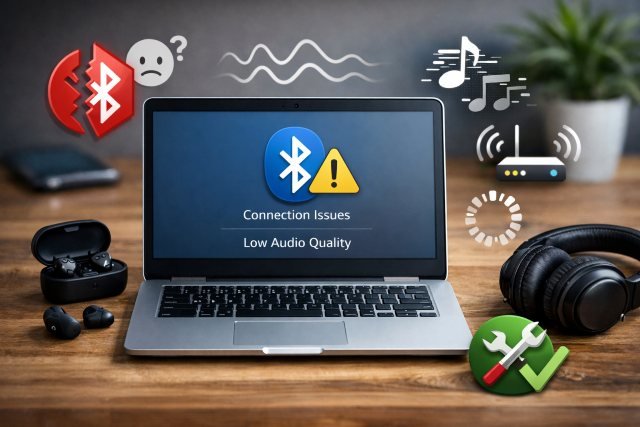
If you’ve been asking, “Why Is My Chromebooks Bluetooth Quality Bad?” you’re not imagining it. Bluetooth audio on a Chromebook can sound muffled, choppy, delayed, or randomly drop to “telephone quality,” even when the same headphones sound great on your phone.
- What “bad Bluetooth quality” usually means on a Chromebook
- Why Is My Chromebooks Bluetooth Quality Bad? The real causes (ranked)
- The Complete Chromebook Bluetooth Fix (step-by-step)
- Quick “symptom → fix” cheatsheet
- FAQs
- Conclusion: Why Is My Chromebooks Bluetooth Quality Bad — and what fixes it most often
The good news: in most cases, the problem isn’t “your Chromebook is bad.” It’s usually a fixable mix of 2.4GHz interference, Bluetooth profile switching, codec negotiation, and a few ChromeOS quirks. Below is a complete, real-world troubleshooting guide that walks you from quick wins to deeper fixes — without guesswork.
What “bad Bluetooth quality” usually means on a Chromebook
People describe Chromebook Bluetooth issues in a few common ways:
- Audio sounds compressed, “underwater,” or tinny
- Music is fine until a meeting starts, then it becomes mono / low quality
- Audio stutters or cuts out when Wi-Fi is active
- Noticeable latency (lip-sync delay) on videos or games
- Random disconnects or volume control glitches
Those symptoms point to different root causes — so the best fix depends on which kind of “bad” you’re experiencing.
Why Is My Chromebooks Bluetooth Quality Bad? The real causes (ranked)
1) 2.4GHz interference (the #1 cause of stutter and dropouts)
Bluetooth and a lot of Wi-Fi traffic share the 2.4GHz band. When your Chromebook is streaming Wi-Fi and Bluetooth at the same time — especially in crowded apartments, offices, or classrooms — packets collide and the audio stream suffers. Research and vendor documentation on wireless coexistence repeatedly shows that uncoordinated use of the 2.4GHz band can degrade performance for Bluetooth and Wi-Fi devices.
Real-life giveaway: Bluetooth audio becomes choppy only when Wi-Fi is on, or it gets worse near routers, microwaves, or busy wireless areas.
2) Your headset switches from music mode (A2DP) to call mode (HFP/HSP)
This is the classic “everything sounded great… then Zoom/Meet/Discord opened and my audio turned awful” issue.
Bluetooth headsets typically use:
- A2DP for higher-quality stereo playback (music/video)
- HFP/HSP for two-way audio (mic + speaker), which is much lower bandwidth
When an app activates your microphone, the headset may switch to HFP/HSP, and audio quality drops hard. This “one profile at a time” limitation is widely documented, and HFP has narrowband/wideband constraints compared to A2DP.
Real-life giveaway: The audio becomes “phone-call quality” exactly when your mic turns on.
3) Codec limitations and negotiation (SBC fallback, limited options)
Bluetooth audio quality depends heavily on the codec used between the Chromebook and your headphones. When devices can’t agree on a higher-quality codec, they fall back to SBC (the universal baseline). SBC can sound fine, but at lower bitrates or in noisy radio conditions it may sound worse than AAC/aptX/LDAC setups on phones. General codec behavior and tradeoffs (bitrate, quality, latency) are well established in audio coverage.
ChromeOS focuses on broad accessory compatibility (A2DP/HFP) and has specific peripheral requirements for Bluetooth audio devices.
That’s good for reliability, but it also means your Chromebook may not behave like your Android phone with “audiophile codec” controls.
4) ChromeOS bugs, stale pairing data, or a corrupted Bluetooth stack
Sometimes Bluetooth is “fine” until it isn’t — then it stays glitchy until you reboot, re-pair, or reset the connection. Community threads regularly report cases where only a restart/power cycle clears the degraded quality.
5) Hardware constraints (cheap radio, weak antenna placement, USB 3 interference)
Some Chromebook models have weaker Bluetooth performance due to radio design, antenna placement, or interference from nearby ports and dongles. OEM troubleshooting guides often recommend hardware resets and escalations when software steps don’t help.
The Complete Chromebook Bluetooth Fix (step-by-step)
Step 1: Do the two fastest “no-brainer” fixes
- Hard reboot the Chromebook (fully power off, wait 10 seconds, power back on).
- Restart the headphones (power cycle them, not just disconnect).
This clears temporary state issues and forces a fresh negotiation of profile + codec.
Step 2: Update ChromeOS (don’t skip this)
Outdated ChromeOS builds can carry Bluetooth regressions or compatibility issues. Several Chromebook troubleshooting sources explicitly recommend updating the OS early in the process.
Path: Settings → About ChromeOS → Check for updates.
Step 3: Forget and re-pair the device (the “pairing cache” fix)
If quality is distorted, volume is weird, or the connection seems “stuck,” re-pairing often helps.
Path: Settings → Bluetooth → your device → Forget → then pair again.
If the device refuses to show up after forgetting, Chromebook community discussions indicate this can happen and may require more thorough reset steps.
Step 4: Fix Wi-Fi/Bluetooth interference (this is the big one)
If your Bluetooth audio stutters, pops, or drops out:
Best fix: move Wi-Fi to 5GHz (or 6GHz if you have Wi-Fi 6E).
Because Bluetooth stays at 2.4GHz, shifting Wi-Fi off 2.4GHz removes the biggest competitor. This is a commonly recommended coexistence mitigation approach.
Other interference reducers that actually matter:
- Move closer to the Chromebook (Bluetooth is short-range in real homes).
- Keep the Chromebook away from the router by a few feet (too close can be noisy, not better).
- If you’re using a USB hub/dongle, try a different port and remove unnecessary wireless accessories.
- Turn off unused Bluetooth devices nearby (watches, controllers, speakers) to reduce spectrum congestion.
Step 5: If audio turns terrible during calls, stop triggering HFP/HSP
If your issue is “music is fine but meetings make it awful,” you’re almost certainly hitting A2DP → HFP/HSP switching.
Practical Chromebook fixes:
- In Google Meet/Zoom/Teams (web), set Microphone to the Chromebook’s built-in mic instead of the headset mic. That often keeps output in higher-quality mode because the headset mic isn’t being used.
- Close apps/tabs that might be “holding” microphone access in the background.
- Check Chrome site permissions: if a site has mic access permanently allowed, it can trigger call mode unexpectedly.
Scenario that surprises people: You’re watching YouTube, and the audio suddenly gets thin. In another tab, a web app is listening for mic input (voice typing, meeting tab, recorder, etc.). As soon as the mic is active, your headset can switch profiles.
Step 6: Reset Bluetooth behavior using ChromeOS diagnostics tools
ChromeOS includes Bluetooth internal logs that can help you isolate whether the problem is pairing, profiles, or the adapter.
Try:
- Open
chrome://bluetooth-internals - Reproduce the issue (connect device, start audio, trigger mic, etc.)
- Look for repeated disconnect/reconnect cycles or profile changes
If Bluetooth is missing entirely or the adapter doesn’t show up, it may be deeper than audio quality (driver/adapter issue). General troubleshooting guides recommend testing Guest Mode, full shutdown, then considering hardware reset or recovery when the adapter is absent.
Step 7: Hardware reset (EC reset) when things feel “stuck”
If Bluetooth quality is persistently broken across all devices:
- Do a hardware reset for your Chromebook model (OEMs like ASUS include this step in Bluetooth troubleshooting).
This is different from a normal reboot — it resets the embedded controller state that can affect radios.
Step 8: Powerwash only if the Bluetooth stack seems corrupted
A Powerwash (factory reset) is a last resort for software corruption. OEM guidance typically places it near the end of the flow.
If Bluetooth works fine in Guest Mode but not in your profile, that’s a stronger hint Powerwash may help.
Step 9: When to consider a different solution (USB Bluetooth or wired)
If you’ve done everything above and:
- multiple headsets behave badly,
- interference isn’t the issue (tested on 5GHz, near the Chromebook),
- updates and resets don’t help,
…then the Chromebook’s internal Bluetooth radio/antenna could be the limiting factor. In that case, a USB Bluetooth transmitter (for audio) or switching to wired/USB-C audio is sometimes the most stable workaround.
Quick “symptom → fix” cheatsheet
| Symptom | Most likely cause | Best first fix |
|---|---|---|
| Choppy audio when Wi-Fi is on | 2.4GHz coexistence interference | Switch Wi-Fi to 5GHz |
| Audio becomes “phone call” quality in meetings | A2DP → HFP/HSP switch | Use Chromebook mic instead |
| Random pops/stutters near router | 2.4GHz congestion | Create distance + 5GHz |
| Volume control glitches / distorted audio | Pairing state bug | Forget + re-pair |
| Issues persist after updates & resets | Hardware limitation | Consider USB solution / service |
FAQs
Why is my Bluetooth audio quality bad only on my Chromebook?
Most often it’s 2.4GHz interference (Wi-Fi + Bluetooth competing) or profile switching when your microphone activates and forces the headset into HFP/HSP call mode.
Why does my headset sound worse when I use the mic?
Because many headsets can only use one Bluetooth audio profile at a time. When the mic is active, they switch from A2DP (higher-quality stereo) to HFP/HSP (lower-bandwidth call audio).
How do I stop Bluetooth stuttering on Chromebook?
Switch your Wi-Fi to 5GHz, move closer to the Chromebook, reduce nearby wireless devices, and re-pair the headset. Coexistence problems in the 2.4GHz band are a known cause of performance degradation.
Is Powerwash guaranteed to fix Bluetooth audio?
No. Powerwash can help if software state is corrupted, but it won’t fix a weak Bluetooth radio or heavy 2.4GHz interference. OEM guidance treats Powerwash as a later-stage step.
Do Chromebooks support “high quality” Bluetooth codecs?
It depends on the model and ChromeOS build, but the bigger point is that Bluetooth quality comes from codec negotiation + radio conditions + profiles. If your connection falls back to SBC or switches to HFP, quality can drop even with premium earbuds.
Conclusion: Why Is My Chromebooks Bluetooth Quality Bad — and what fixes it most often
So, Why Is My Chromebooks Bluetooth Quality Bad? In most cases, it’s not your headphones — it’s the environment and how Bluetooth behaves on ChromeOS: crowded 2.4GHz airwaves, automatic switches into low-quality call mode, and occasional pairing glitches. The most reliable improvements come from (1) moving Wi-Fi to 5GHz, (2) preventing your headset from switching to HFP/HSP by using the Chromebook mic during calls, and (3) refreshing the connection with updates and re-pairing.