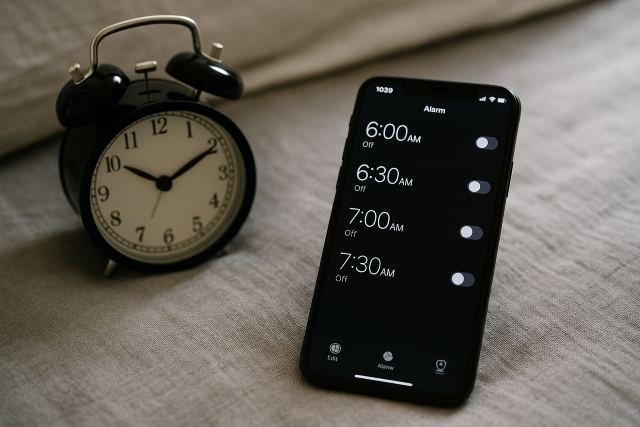
It’s frustrating when you rely on your iPhone to wake you up or remind you of important tasks — only to find your iPhone alarms not going off at all. This is a common issue reported across multiple iOS versions, often caused by incorrect settings, software bugs, sound issues, or app conflicts. The good news? Most causes are easy to fix once you understand what’s going wrong.
- 1. Alarm Sound Is Set (Not “None”)
- 2. Alarm Volume Is Loud Enough
- 3. iPhone Is Not in Silent Mode
- 4. Alarm Time Is Set Correctly
- 1. Check Focus Modes (Most Common Culprit)
- 2. Sleep Schedule Overrides Regular Alarms
- 3. Low Power Mode Limits Alarm Functions
- 4. Screen Time Restrictions
- 1. Disconnect Bluetooth Devices
- 2. Unplug Wired Headphones
- 3. Turn Off AirPlay
- 4. Check “Attention Aware Features”
- 1. Sleep Focus Blocks Alarms
- 2. Do Not Disturb Doesn’t Always Allow Alarm Apps
- 3. Scheduled Focus Automation May Mute Alerts
- 1. Update iOS to the Latest Version
- 2. Restart Your iPhone
- 3. Delete and Recreate the Alarm
- 4. Reset All Settings (Last Resort)
- Step-by-Step Fix Checklist
In this detailed guide, we’ll explain why iPhone alarms fail and share proven solutions to ensure your alarms go off reliably every time. Whether the alarm is silent, delayed, too quiet, or not ringing at all, this tutorial covers every possible fix.
Why Are iPhone Alarms Not Going Off? (Top Causes)
When diagnosing iPhone alarms not going off, most issues fall under one of these categories:
- Incorrect alarm setup
- Low or muted volume
- Audio output directed to headphones or Bluetooth
- Sleep Mode suppressing alarms
- App or system-level bugs
- Outdated iOS version
- Focus mode or Do Not Disturb interference
- Third-party apps overriding alarm audio
- Timer conflicts or overlapping alerts
Apple acknowledges alarm issues in certain iOS versions, and updates often include fixes
Understanding the root cause helps you apply the right fix quickly.
Check These Basic Settings First (Immediate Fixes)
Before digging deeper, make sure these core settings are correct.
1. Alarm Sound Is Set (Not “None”)
Many users accidentally choose “None” as the alarm tone.
Fix:
Clock → Alarm → Edit → Sound → Choose a ringtone.
2. Alarm Volume Is Loud Enough
Alarm volume depends on Ringer & Alerts, not media volume.
Fix:
Settings → Sounds & Haptics → Ringer & Alerts → Increase volume.
3. iPhone Is Not in Silent Mode
Silent mode does NOT disable alarms, but vibration-only alarms may be too quiet.
Check the switch on the side of your phone.
4. Alarm Time Is Set Correctly
Double-check:
- AM vs PM
- Repeating days
- Next-day alarms
- Time zone changes
Hidden iPhone Settings That Break Alarms
Many users don’t realize certain iOS features interfere with alarms.
1. Check Focus Modes (Most Common Culprit)
Focus modes include:
- Do Not Disturb
- Sleep
- Work
- Personal
These modes silence or delay notifications.
Fix:
Settings → Focus → Disable all or adjust allowed apps.
2. Sleep Schedule Overrides Regular Alarms
In iOS, the Bedtime/Sleep schedule may override your manual alarms.
Fix:
Health App → Sleep → Full Schedule → Turn off Sleep Schedule.
3. Low Power Mode Limits Alarm Functions
Low Power Mode can pause background processes and may impact alarms.
Fix:
Settings → Battery → Turn off Low Power Mode.
4. Screen Time Restrictions
Certain parental controls affect alerts.
Fix:
Settings → Screen Time → Allow notifications and alarms.
Sound, Volume & Output Fixes (Silent Alarms Issue)
Silent alarms are usually caused by misdirected audio.
1. Disconnect Bluetooth Devices
If Bluetooth earbuds or speakers are connected, alarms may play through them.
Fix:
Turn off Bluetooth → Try alarm.
2. Unplug Wired Headphones
iPhone may think audio should output through headphones.
3. Turn Off AirPlay
If AirPlay is connected to a TV or speaker, alarm may ring elsewhere.
4. Check “Attention Aware Features”
This feature lowers volume if Face ID senses you’re looking at the phone.
Fix:
Settings → Face ID & Passcode → Disable Attention Aware Features.
Sleep Focus, Bedtime & Do Not Disturb Issues
1. Sleep Focus Blocks Alarms
It prevents unimportant notifications, sometimes including alarms.
2. Do Not Disturb Doesn’t Always Allow Alarm Apps
Earlier iOS versions had bugs causing alarms to fail when DND was active.
3. Scheduled Focus Automation May Mute Alerts
Check automations:
Settings → Focus → Automation
Disable unwanted triggers.
Alarm App Bugs and iOS Problems
Sometimes the issue isn’t your settings — it’s iOS itself.
1. Update iOS to the Latest Version
Apple frequently fixes alarm-related bugs.
Fix:
Settings → General → Software Update
2. Restart Your iPhone
A simple restart often resolves alarm glitches.
3. Delete and Recreate the Alarm
Corrupt alarm entries are more common than you think.
Fix:
Clock → Alarm → Delete all → Re-add alarm
4. Reset All Settings (Last Resort)
Does not erase data.
Settings → General → Reset → Reset All Settings
Proven Solutions: How to Fix iPhone Alarms Not Going Off
Here’s a complete troubleshooting list you can follow:
Step-by-Step Fix Checklist
1. Check alarm sound and volume
Ensure tone is set and volume is high.
2. Disable Bluetooth audio outputs
Prevents alarms from going to external devices.
3. Turn off Focus modes
Especially Sleep and Do Not Disturb.
4. Disable Sleep Schedule
Prevents conflicts with standard alarms.
5. Update to latest iOS
Fixes known bugs.
6. Restart your device
Resets background processes.
7. Recreate alarms
Eliminates corrupted entries.
8. Use built-in Clock app only
Some third-party alarm apps fail in the background.
9. Clean your speaker
If you hear no sound at all, speaker obstruction may be the issue.
10. Test with vibration + sound
Ensures your hardware is functioning.
Real-World Scenarios & Examples
Scenario 1: Alarm Doesn’t Ring After iOS Update
Cause: Temporary iOS bug
Fix: Restart → Recreate alarms → Update to patch
Scenario 2: Alarm Only Vibrates
Cause: Volume set to zero
Fix: Ringer & Alerts volume adjustment
Scenario 3: Alarm Goes Off on AirPods Only
Cause: Bluetooth still connected
Fix: Turn off Bluetooth or disconnect manually
Scenario 4: Sleep Focus Overrides Alarm
Cause: Sleep schedule active
Fix: Disable Sleep mode or modify schedule
Frequently Asked Questions (FAQ)
1. Why are my iPhone alarms not going off?
Most commonly due to: Focus modes, sound settings, Bluetooth, or outdated iOS.
2. Do iPhone alarms work in Silent Mode?
Yes. Silent mode DOES NOT disable alarms.
3. Do iPhone alarms work when phone is off?
No. Unlike older phones, iPhones require power on.
4. Why is my alarm so quiet?
Check the Ringer volume and Attention Aware feature.
5. How do I make my alarm louder?
Choose a loud tone → increase Ringer volume → disable Attention Aware.
Conclusion: Fixing iPhone Alarms Not Going Off for Good
If you’re dealing with iPhone alarms not going off, the issue is almost always related to settings, audio output, or software glitches. Fortunately, the solutions are simple — adjust your alarm tone, check Focus modes, disconnect Bluetooth, and keep your iOS updated. With the fixes in this guide, your alarms will stay reliable and consistent, ensuring you never miss an important appointment or morning wake-up again.
Whether you’re troubleshooting Sleep Mode conflicts, speaker issues, or iOS bugs, the steps above give you everything you need to restore full alarm functionality.