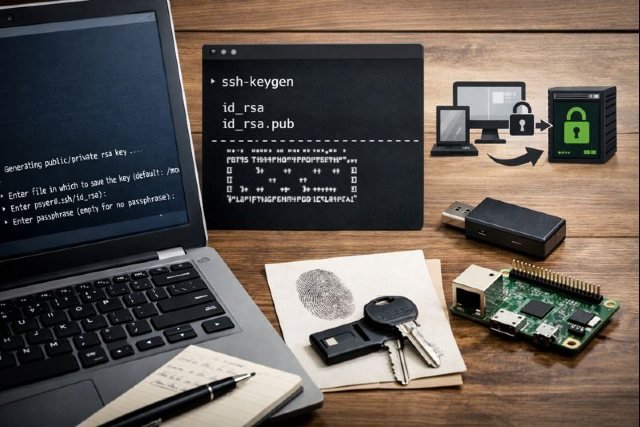
SSH is the backbone of secure remote access — and ssh-keygen is the tool that makes SSH authentication safer, faster, and more reliable than passwords. If you’ve ever typed an SSH password repeatedly, or you’re worried about brute-force attacks, switching to SSH keys is one of the best upgrades you can make.
- What Is ssh-keygen and Why It Matters
- How SSH Key Authentication Works (Simple Explanation)
- Choosing the Best SSH Key Type (Ed25519 vs RSA)
- How to Generate an SSH Key with ssh-keygen (Step-by-Step)
- Should You Add a Passphrase? Yes — Here’s Why
- How to Generate an RSA Key with ssh-keygen (When You Need Compatibility)
- Where ssh-keygen Stores Your Keys (and How to View Them)
- How to Add Your SSH Public Key to a Server
- How to Add ssh-keygen Keys to GitHub
- Using ssh-agent to Avoid Re-typing Your Passphrase
- Advanced ssh-keygen Features You Should Know
- How to Use SSH Config for Multiple Keys (Common Pro Workflow)
- Common ssh-keygen Problems (and How to Fix Them)
- Best Practices for Secure SSH Key Management
- Frequently Asked Questions (FAQ)
- Conclusion: Secure SSH Access Starts with ssh-keygen
In this guide, you’ll learn exactly how to use ssh-keygen step by step, why it matters for security, which key type to choose, and how to fix common mistakes. You’ll also get practical, real-world examples like using keys with GitHub, rotating keys, and hardening server authentication.
By the end, you’ll be able to confidently generate, manage, and protect SSH keys using ssh-keygen — like a pro.
What Is ssh-keygen and Why It Matters
ssh-keygen is the standard command-line utility used to generate and manage SSH key pairs for secure authentication. It comes with OpenSSH and can also convert formats, inspect key fingerprints, and handle key rotation and revocation. According to the OpenSSH documentation, ssh-keygen generates, manages, and converts authentication keys for SSH.
Why SSH keys are more secure than passwords
Passwords can be guessed, reused, phished, or brute-forced. SSH keys are different: they rely on public-key cryptography, where your private key stays on your device while the public key is added to servers or services.
That means:
- You never send your secret over the network
- The attacker can’t brute-force easily
- You can add passphrases and hardware-based security
How SSH Key Authentication Works (Simple Explanation)
SSH key authentication uses two files:
- Private key (kept secret on your device)
- Public key (shared with servers or services)
When you connect to a server:
- The server checks if your public key is authorized
- It challenges your client
- Your client proves ownership using the private key
- If valid, you log in without a password
This is why protecting the private key (and adding a passphrase) is critical.
Choosing the Best SSH Key Type (Ed25519 vs RSA)
When using ssh-keygen, your most important decision is which algorithm to generate.
Recommended: Ed25519
Ed25519 is now widely considered the best default for most modern systems because it’s:
- Strong
- Fast
- Resistant to many implementation issues
- Small key size with high security
The OpenSSH man page confirms that when you run ssh-keygen without arguments, it generates an Ed25519 key by default (on modern versions).
RSA: Still useful in compatibility scenarios
RSA keys remain common, especially when connecting to older systems that don’t support Ed25519. When using RSA, modern best practice is using strong key sizes (2048 minimum, 3072+ preferred). NIST guidance documents commonly include RSA 2048 and RSA 3072 as acceptable key sizes in federal authentication contexts.
Avoid DSA (deprecated)
Major platforms like GitHub explicitly reject DSA (ssh-dss) keys due to security risks.
Practical recommendation:
- Use Ed25519 unless you must support legacy systems
- Use RSA 3072/4096 if Ed25519 isn’t supported
How to Generate an SSH Key with ssh-keygen (Step-by-Step)
This section is the core workflow most users need.
Step 1: Open Terminal
On Linux/macOS, open Terminal.
On Windows, use PowerShell or Git Bash (if you installed Git).
Step 2: Generate an Ed25519 key (recommended)
ssh-keygen -t ed25519 -C “your_email@example.com”
-t ed25519selects the algorithm-Cadds a comment (helpful for identifying the key later)
The tool will prompt you for:
- File location (press Enter for default)
- Passphrase (highly recommended)
Default location is typically:
~/.ssh/id_ed25519(private key)~/.ssh/id_ed25519.pub(public key)
This aligns with standard OpenSSH behavior in the ssh-keygen documentation.
Should You Add a Passphrase? Yes — Here’s Why
A passphrase encrypts your private key, so if someone steals the file, they still can’t use it easily. Without a passphrase, anyone who gets access to the private key can authenticate as you.
Best practice: Use a strong, memorable passphrase (or a password manager).
If you’re worried about entering a passphrase repeatedly, you can use ssh-agent (covered below).
How to Generate an RSA Key with ssh-keygen (When You Need Compatibility)
Use RSA if:
- You’re connecting to older servers
- Your infrastructure doesn’t support Ed25519
Recommended RSA generation:
ssh-keygen -t rsa -b 4096 -C “your_email@example.com”
-b 4096specifies a stronger key length- RSA 2048 is still accepted in many environments, but larger sizes provide longer security lifetimes
Where ssh-keygen Stores Your Keys (and How to View Them)
After generating keys, check your .ssh folder:
ls -la ~/.ssh
You should see files like:
id_ed25519id_ed25519.pubknown_hostsconfig
To view your public key:
cat ~/.ssh/id_ed25519.pub
Never share your private key file (id_ed25519).
How to Add Your SSH Public Key to a Server
Step 1: Copy your public key
On Linux/macOS:
ssh-copy-id user@server_ip
If that isn’t available, manually copy:
cat ~/.ssh/id_ed25519.pub
Step 2: Paste into authorized_keys
On the server:
mkdir -p ~/.ssh
chmod 700 ~/.ssh
nano ~/.ssh/authorized_keys
chmod 600 ~/.ssh/authorized_keys
Then connect:
ssh user@server_ip
If your permissions are wrong, SSH may refuse keys (more on that later).
How to Add ssh-keygen Keys to GitHub
Many developers use ssh-keygen primarily for GitHub authentication.
GitHub’s official documentation walks through adding an SSH key and notes important security changes (like dropping insecure key types and enforcing stronger signature algorithms for RSA).
Steps:
- Copy your public key:
cat ~/.ssh/id_ed25519.pub - Go to GitHub → Settings → SSH and GPG keys
- Click New SSH key
- Paste your public key and save
Test connection:
ssh -T git@github.com
Using ssh-agent to Avoid Re-typing Your Passphrase
If you set a passphrase (you should), ssh-agent helps by caching decrypted keys securely for a session.
Start agent:
eval “$(ssh-agent -s)”
Add your key:
ssh-add ~/.ssh/id_ed25519
Now SSH connections will work without repeated passphrase prompts.
Advanced ssh-keygen Features You Should Know
1) Change your SSH key passphrase
ssh-keygen -p -f ~/.ssh/id_ed25519
This updates the passphrase without changing the key itself.
2) Generate a key with a custom filename
Useful if you manage multiple environments (personal vs work):
ssh-keygen -t ed25519 -f ~/.ssh/id_ed25519_work -C “work@email.com”
3) Check fingerprint (verify key identity)
When servers display fingerprints, compare them:
ssh-keygen -lf ~/.ssh/id_ed25519.pub
4) Convert key formats
ssh-keygen can convert private key formats:
ssh-keygen -p -m PEM -f ~/.ssh/id_rsa
This is useful when interacting with older systems or tools.
OpenSSH documents key conversion and key management features as part of ssh-keygen’s core purpose.
How to Use SSH Config for Multiple Keys (Common Pro Workflow)
If you have multiple keys, configure them cleanly:
Create or edit:
nano ~/.ssh/config
Example:
Host github.com
HostName github.com
User git
IdentityFile ~/.ssh/id_ed25519
Host work-server
HostName 203.0.113.10
User ubuntu
IdentityFile ~/.ssh/id_ed25519_work
Now you can connect with:
ssh work-server
This is one of the best usability improvements when managing multiple environments.
Common ssh-keygen Problems (and How to Fix Them)
Problem 1: “Permissions are too open”
SSH requires strict permissions.
Fix:
chmod 700 ~/.ssh
chmod 600 ~/.ssh/id_ed25519
chmod 644 ~/.ssh/id_ed25519.pub
chmod 600 ~/.ssh/authorized_keys
Problem 2: “Permission denied (publickey)”
Usually caused by:
- Public key not installed on server
- Wrong user
- Wrong key being offered
- Server SSH config disallowing your key type
Debug:
ssh -v user@server_ip
Look for lines like:
- “Offering public key”
- “Server accepts key”
- “No more authentication methods”
Problem 3: “Agent admitted failure to sign”
This can happen if:
- ssh-agent isn’t running
- key wasn’t added to agent
- passphrase prompt failed
Fix:
eval “$(ssh-agent -s)”
ssh-add ~/.ssh/id_ed25519
Best Practices for Secure SSH Key Management
Rotate keys periodically
Key rotation reduces long-term risk. Many organizations rotate developer credentials every 6–12 months.
Use different keys for different environments
Don’t reuse the same key across:
- GitHub
- Work servers
- Personal VPS
- Production systems
Prefer modern algorithms
Platforms like GitHub have explicitly deprecated insecure SSH key types such as DSA and enforce stronger practices around signatures.
Back up private keys securely
Store encrypted backups in:
- password managers
- encrypted disk volumes
- secure key vaults
Frequently Asked Questions (FAQ)
What does ssh-keygen do?
ssh-keygen generates and manages SSH key pairs used for secure authentication instead of passwords. It can also convert key formats and display fingerprints.
What is the best ssh-keygen command for most users?
For most users, the best default is:
ssh-keygen -t ed25519 -C “your_email@example.com”
Where is the SSH private key stored?
By default, ssh-keygen stores keys in:
~/.ssh/id_ed25519(private key)~/.ssh/id_ed25519.pub(public key)
Can I use ssh-keygen on Windows?
Yes. You can use ssh-keygen in:
- Windows PowerShell (OpenSSH client installed)
- Git Bash
- Windows Terminal
Should I use RSA or Ed25519?
Use Ed25519 for modern systems. Use RSA for compatibility with older servers that don’t support Ed25519.
Is a passphrase required?
Not required, but strongly recommended. A passphrase encrypts your private key and prevents easy misuse if stolen.
Conclusion: Secure SSH Access Starts with ssh-keygen
If you want secure, passwordless SSH authentication, ssh-keygen is the simplest and most powerful tool to start with. By generating a modern key type like Ed25519, protecting it with a passphrase, and managing it with ssh-agent, you greatly reduce the risk of unauthorized access while making remote logins easier.
Whether you’re logging into servers, automating deployments, or connecting to GitHub, knowing how to use ssh-keygen gives you a foundational security skill you’ll use for years. And as security standards evolve, following best practices — like key rotation and using modern algorithms — keeps your infrastructure resilient.