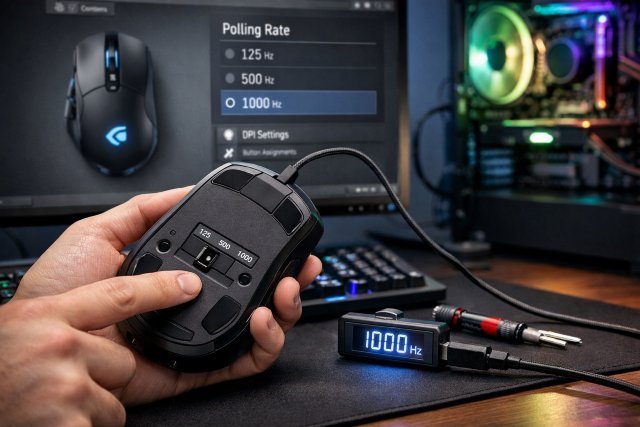
If you’re serious about gaming or precision work, understanding how to change polling rate on mouse can significantly improve your experience. Polling rate directly affects how quickly your mouse communicates with your computer, influencing responsiveness, accuracy, and overall performance.
- What Is Mouse Polling Rate?
- Why Polling Rate Matters
- How To Change Polling Rate On Mouse (Step-by-Step)
- Best Polling Rate Settings for Different Use Cases
- Common Issues When Changing Polling Rate
- Advanced Tips for Optimizing Mouse Performance
- Real-World Example
- FAQ: How To Change Polling Rate On Mouse
- Conclusion
Most modern gaming mice support adjustable polling rates, but many users never tweak this setting. Whether you’re aiming for smoother cursor movement, reduced latency, or optimized battery life, learning how to properly configure your mouse can make a noticeable difference.
In this comprehensive guide, you’ll learn what polling rate is, why it matters, and exactly how to change polling rate on mouse across different devices and software platforms.
What Is Mouse Polling Rate?
Polling rate refers to how often your mouse reports its position to your computer per second, measured in Hertz (Hz). A 125Hz polling rate means the mouse updates its position 125 times per second, while 1000Hz means 1000 updates per second.
Higher polling rates result in lower input lag. According to research by hardware analysis platforms like RTINGS and NVIDIA’s latency documentation, increasing polling rate from 125Hz to 1000Hz can reduce input delay by several milliseconds, which is critical in competitive gaming.
Why Polling Rate Matters
Understanding how to change polling rate on mouse is important because it directly impacts performance in different scenarios.
A higher polling rate provides smoother cursor movement and faster response times. This is especially beneficial in first-person shooter games where milliseconds can determine outcomes. However, higher rates also consume more CPU resources and battery life in wireless mice.
On the other hand, a lower polling rate reduces system load and extends battery life but may introduce slight input lag. For everyday tasks like browsing or office work, this difference is often negligible.
How To Change Polling Rate On Mouse (Step-by-Step)
Using Manufacturer Software
The most reliable method for adjusting polling rate is through your mouse manufacturer’s software. Brands like Logitech, Razer, Corsair, and SteelSeries provide dedicated tools.
To change the polling rate, install the official software such as Logitech G Hub or Razer Synapse. Once installed, connect your mouse and navigate to the performance or sensitivity settings. You’ll typically find polling rate options like 125Hz, 250Hz, 500Hz, and 1000Hz. Select your preferred setting and apply changes.
This method ensures compatibility and stability since the firmware is designed specifically for your device.
Using DPI Buttons or Hardware Switches
Some gaming mice allow you to change polling rate using onboard buttons or switches. These are often located on the bottom of the mouse.
Pressing or toggling these switches cycles through predefined polling rates. While this method is quick, it may not offer precise customization compared to software-based adjustments.
Changing Polling Rate Without Software
If your mouse does not have dedicated software, you may still adjust polling rate through system tools or third-party utilities.
On Windows, advanced users sometimes use USB driver tweaks or tools like “Mouse Rate Checker” to monitor performance. However, changing polling rate without official software can be limited and is generally not recommended unless you know what you’re doing.
For most users, sticking with manufacturer tools is the safest approach.
Best Polling Rate Settings for Different Use Cases
Gaming Performance
For competitive gaming, a polling rate of 1000Hz is widely considered optimal. It minimizes latency and ensures the fastest possible response time.
Professional esports players often use 1000Hz for precision aiming. According to data from platforms like ProSettings.net, most pro gamers prefer higher polling rates for consistency.
Office Work and Everyday Use
For general tasks like browsing, writing, and casual use, a polling rate between 125Hz and 250Hz is sufficient. Higher rates won’t provide noticeable benefits and may unnecessarily consume system resources.
Wireless Mouse Optimization
Wireless mice introduce additional considerations. Higher polling rates can drain battery faster.
Many users settle for 500Hz as a balance between performance and battery efficiency. Modern wireless technologies like Logitech Lightspeed or Razer HyperSpeed have improved efficiency, but power consumption still matters.
Common Issues When Changing Polling Rate
Mouse Stuttering or Lag
If you experience stuttering after increasing the polling rate, your system may not handle the higher frequency efficiently. Lowering the rate to 500Hz often resolves this issue.
CPU Usage Spikes
Higher polling rates increase CPU usage slightly. On older systems, this can impact performance. Monitoring your system performance after changes is recommended.
Inconsistent Performance in Games
Some games may not fully support high polling rates. In such cases, lowering the polling rate can improve stability.
Advanced Tips for Optimizing Mouse Performance
When learning how to change polling rate on mouse, it’s important to consider other factors that influence performance.
DPI settings, surface quality, and sensor technology all play a role. A high polling rate combined with an inappropriate DPI setting can result in overly sensitive or jittery movement.
Additionally, keeping your mouse firmware updated ensures optimal compatibility and performance.
Using a high-quality mouse pad can also enhance tracking accuracy, especially at higher polling rates.
Real-World Example
Consider a competitive FPS player switching from 125Hz to 1000Hz. The reduction in input delay improves aiming precision and reaction time. However, if their system struggles with higher CPU load, they might experience micro-stutters.
By adjusting to 500Hz, they achieve a balance between responsiveness and system stability. This highlights the importance of testing different settings rather than blindly choosing the highest option.
FAQ: How To Change Polling Rate On Mouse
What is the best polling rate for gaming?
The best polling rate for gaming is typically 1000Hz, as it offers the lowest input latency and fastest response time.
Does higher polling rate improve accuracy?
Higher polling rates improve responsiveness but do not directly increase sensor accuracy. However, smoother tracking can enhance perceived precision.
Can all mice change polling rate?
No, only mice with adjustable firmware or software support allow polling rate changes. Basic office mice often have fixed polling rates.
Is 500Hz good enough?
Yes, 500Hz provides a good balance between performance and system efficiency, especially for mid-range systems or wireless mice.
How do I check my current polling rate?
You can use online tools like Mouse Rate Checker or manufacturer software to view your current polling rate.
Conclusion
Mastering how to change polling rate on mouse is a simple yet powerful way to enhance your computing experience. Whether you’re a competitive gamer seeking ultra-low latency or a casual user optimizing battery life, adjusting this setting can make a meaningful difference.
The key is to find the right balance for your specific needs. While 1000Hz offers maximum responsiveness, lower settings may provide better stability and efficiency depending on your setup.
Experiment with different polling rates, monitor performance, and fine-tune your configuration. With the right setup, your mouse can deliver smoother, faster, and more precise control tailored to your workflow.