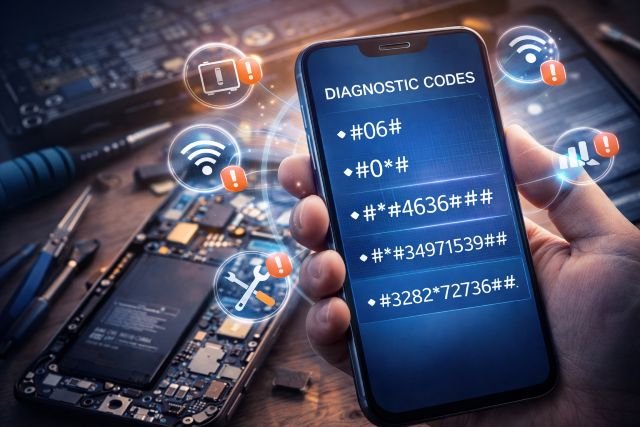
Most Android users will eventually experience a frustrating mystery issue. Maybe the touchscreen stops responding, the battery drains faster than usual, or the phone struggles to hold a stable network signal. Before rushing to a service center, there’s a simple way to gather useful clues about what’s going on. Android has built-in diagnostic codes that reveal hidden menus designed to test, measure, and troubleshoot different parts of your phone. Created for engineers and service technicians, these hidden menus are now widely used by informed users who want deeper insight into their device’s performance without opening the phone or installing extra apps.
What Are Android Diagnostic Codes?
Android diagnostic codes are short numeric or alphanumeric commands entered directly into the phone’s dialer. Once triggered, they reveal internal test menus for components such as the display, battery, Wi-Fi radio, GPS, vibration motor, and more.
These diagnostic codes are part of the Android system architecture and were designed to help technicians validate a device’s health quickly and accurately. When entered correctly, they display performance information that would otherwise be hidden from users.
Different manufacturers support different diagnostic codes, so a combination that works on Samsung may not work on Xiaomi or OnePlus. However, the concept remains the same. It provides a direct gateway to advanced test menus, without rooting, third-party apps, or special hardware required. While advanced codes should be used with care, most diagnostic codes are safe for everyday users to help spot issues before seeking professional repair.
Why Diagnostic Codes Matter
When a phone starts acting up, it’s not always clear what’s causing the issue. Diagnostic codes help narrow down the problem fast. They let you check battery health, verify cellular reception strength, test sensors, and confirm that your display and audio hardware are performing correctly.
Using diagnostic codes allows you to spot issues without taking your phone apart or guessing what’s wrong. They provide real-time data, making it much easier to decide whether the problem is software-related or due to a physical component failure.
If you’re preparing to visit a repair shop or contact support, diagnostic codes help you explain the problem clearly and confidently. And for professionals, knowing how to use these menus speeds up troubleshooting work significantly.
Chimera Tool features are pairing advanced software-level diagnostics with the built-in insight offered by diagnostic codes, giving technicians a complete picture of device behavior. Paired with a wide list of supported models, this makes hardware and software troubleshooting more efficient and reliable.
Commonly Used Android Diagnostic Codes
Below you will find some of the most useful Android diagnostic codes. These shortcuts allow technicians and power users to quickly access hidden diagnostic menus without installing third-party tools, making them especially valuable when troubleshooting hardware or software issues on the spot.
- *#0*# – Opens a hardware test menu on many Samsung devices (screen, vibration, speakers, sensors, camera).
- *#06# – Displays the device’s IMEI number for network verification or repair tracking.
- *#0228# – Shows in-depth battery information, including voltage and temperature.
- *#0011# – Displays network service and signal details to troubleshoot reception issues.
- *##4636##* – Opens Android’s built-in Testing menu (network info, Wi-Fi stats, usage data).
To use these diagnostic codes, simply open your dialer, type the code, and the menu will appear automatically. If nothing happens, it may mean the code is not supported on your specific model or Android version. In some cases, manufacturers disable certain codes to prevent unauthorized access to service menus or advanced settings.
Beyond Manual Testing: When Extra Tools Help
While diagnostic codes are excellent for quick checks and basic troubleshooting, they represent just one layer of the mobile diagnostics toolbox. Professional environments often combine these built-in menus with dedicated testing platforms to ensure accuracy, consistency, and speed, especially when multiple devices need to be evaluated.
For example, M360 is a leading software solution used across the mobile refurbishment industry to evaluate device condition at scale. It performs an automated 80+ point inspection of essential components, such as the display, battery, connectivity modules, and sensors, and documents the cosmetic condition.
This level of testing helps repair centers, wholesalers, and marketplaces produce reliable, data-backed device reports efficiently, and the process earned the trust of major industry players such as Back Market. In high-volume environments, this automated approach ensures consistency and builds trust in the secondary device market.
For deeper software-level service tasks, such as IMEI blacklist checks, firmware repair, rooting-related fixes, or carrier unlock operations, advanced tools like Chimera Tool complement the insights gained from diagnostic codes.
Together, both manual and software-assisted diagnostics provide a clearer picture of device health, enabling technicians to move from basic troubleshooting to full-scale professional repair workflows with confidence.
Summary
Whether you’re a curious Android user or a repair professional, learning how to use diagnostic codes can save time, avoid unnecessary repairs, and improve your device maintenance workflow. Ready to go further? Pairing built-in diagnostic codes with professional software tools gives you the most complete picture of your device’s health and the confidence to tackle even complex issues.