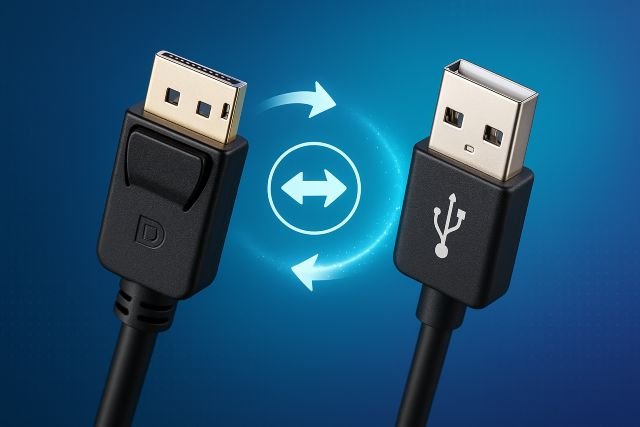
When people search for a DP to USB Connector, they’re usually trying to solve a simple problem:
“I have DisplayPort on one side and USB on the other – how do I connect them?”
- DisplayPort vs USB: Why You Can’t Just Use a Simple Cable
- What Do People Really Mean by “DP to USB Connector”?
- Type 1: USB-C with DisplayPort Alt Mode (DP Alt Mode)
- Type 2: USB to DisplayPort Adapters (External USB Graphics)
- DP to USB Connector Types: Quick Comparison
- Common Misconception: DisplayPort to USB for Data Devices
- How to Choose the Right DP to USB Connector for Your Setup
- Example Use Cases
- FAQ: Quick Answers About DP to USB Connectors
- Conclusion: Choosing the Right DP to USB Connector
Here’s the catch: DisplayPort (DP) and USB are very different technologies, so there isn’t a simple, passive “DP plug to USB plug” cable that magically converts one into the other. Instead, there are specific types of adapters and connectors that either:
- Send DisplayPort video over a USB-C port (DisplayPort Alt Mode), or
- Convert USB data into a video signal for a DisplayPort monitor (USB-to-DisplayPort adapter).
This guide will break down what a DP to USB connector actually is, how each type works, and how to choose the right one for your laptop, PC, or monitor.
DisplayPort vs USB: Why You Can’t Just Use a Simple Cable
Before we talk about connectors, it helps to understand the two technologies.
- DisplayPort (DP) is mainly for video and audio. It’s a display interface developed by VESA for connecting PCs, laptops, and GPUs to monitors and TVs.
- USB (Universal Serial Bus) is a general-purpose interface used for data transfer, peripherals, charging, and sometimes video. Newer versions like USB-C and USB4 can also carry display signals via special modes.
So:
- DisplayPort sends dedicated video streams.
- USB sends packets of data for many different tasks (storage, input devices, networking, etc.).
Because the protocols are different, you can’t just wire pins together and expect DP to behave like USB. Any real “DP to USB connector” needs either a special mode (DisplayPort Alt Mode) or an active chip that converts between the two.
What Do People Really Mean by “DP to USB Connector”?
In real-world usage, “DP to USB connector” usually refers to one of these:
- USB-C with DisplayPort Alt Mode → DisplayPort display
- Example: a USB-C port on a laptop connecting to a DisplayPort monitor or dock.
- USB-A or USB-C → DisplayPort adapter using a graphics chip
- Example: a USB 3.0 to DisplayPort adapter that adds an extra monitor.
Let’s explore each type and how it works.
Type 1: USB-C with DisplayPort Alt Mode (DP Alt Mode)
You’ll often see cables or hubs described as:
- “USB-C to DisplayPort cable”
- “USB-C hub with DP output”
- “USB-C DP Alt Mode adapter”
These are not “USB turning into DP” in software; they’re using DisplayPort Alternate Mode.
What is DisplayPort Alt Mode?
DisplayPort Alt Mode (DP Alt Mode) is a standard that allows a USB-C port to carry native DisplayPort video and audio signals over the same reversible USB-C connector.
Key points:
- The port still physically looks like USB-C, but internally some of its high-speed lanes switch over to carrying DisplayPort protocol instead of normal USB data.
- This enables single-cable connections from a laptop to a monitor (video + sometimes power + data).
- It’s defined jointly by VESA (DisplayPort) and the USB-IF.
So when you plug a USB-C to DP cable into a laptop that supports DP Alt Mode, your DisplayPort monitor is essentially seeing a native DP signal, just coming through a USB-C shell.
How a DP Alt Mode USB-C to DP Connector Works (Step-by-Step)
- Laptop’s USB-C port detects the DP Alt Mode device using USB Power Delivery / configuration channel.
- Once agreed, the port reconfigures its lanes so that high-speed lines no longer carry USB data, but DisplayPort video and audio.
- The cable or dongle routes those DP signals to a full-size DisplayPort connector on the other end.
- The monitor treats it like any other DisplayPort input.
There’s no heavy “conversion” chip needed here – the GPU is literally sending DisplayPort; the USB-C connector is just the physical interface.
Benefits of DP Alt Mode Over USB-C
- One cable for video, sometimes data and power
- Support for high resolutions and refresh rates (e.g., 4K and beyond), especially with newer DP Alt Mode 2.0 over USB4 and USB-C.
- Cleaner setups for laptops, tablets, and modern docks.
Type 2: USB to DisplayPort Adapters (External USB Graphics)
The second big category people call a “DP to USB connector” is actually USB to DisplayPort adapters.
These:
- Plug into a USB-A or USB-C port on your computer.
- Provide one or more DisplayPort outputs.
- Let you add extra monitors even if your laptop doesn’t have DP/HDMI ports or has limited GPU outputs.
How a USB to DisplayPort Adapter Works
Most of these use a technology like DisplayLink (now under Synaptics) or similar USB graphics chips:
- The computer’s OS and driver compress the desktop video into a data stream.
- This compressed video is sent over standard USB data (USB 3.0/3.2, sometimes USB 2.0).
- Inside the adapter, a DisplayLink chip or equivalent decompresses the stream, stores frames in local memory, and outputs actual DisplayPort video to the monitor.
Effectively, your adapter acts as an external graphics card, using USB as the connection to the computer.
Pros of USB-to-DP Adapters
- Add multiple monitors to ultrabooks or small PCs.
- Often support 4K displays or dual 1080p/1440p connections.
- Work even if your laptop’s USB-C port doesn’t support DP Alt Mode (as long as the OS and drivers are supported).
Cons
- Rely on drivers and CPU/GPU resources, so they’re not ideal for heavy gaming.
- Limited performance over slow USB ports (e.g., USB 2.0).
- You must install the correct DisplayLink or vendor driver for full functionality.
DP to USB Connector Types: Quick Comparison
Here’s a simple overview of what people often call a “DP to USB connector”:
| Type / Name | Direction | How It Works | Typical Use Case |
|---|---|---|---|
| USB-C to DisplayPort (DP Alt Mode) | USB-C → DisplayPort | Native DP signals over USB-C (Alt Mode) | Connect laptop USB-C to DP monitor |
| USB-A to DisplayPort Adapter | USB-A → DisplayPort | USB graphics chip (e.g., DisplayLink) converts to DP | Add monitor where only USB-A is available |
| USB-C Dock with DP Ports | USB-C → multiple DisplayPort | Combo of DP Alt Mode, USB hub & sometimes DisplayLink | One-cable dock with several displays |
| “DP to USB Cable” (marketing term) | Often misleading | Usually actually USB → DP, or DP Alt Mode over USB-C | Check specs carefully before buying |
Common Misconception: DisplayPort to USB for Data Devices
A frequent question is:
“Can I use a DP to USB connector to plug a USB device (like a keyboard or flash drive) into a DisplayPort port?”
Short answer: No.
Because:
- DisplayPort outputs video/audio only, not general USB data.
- A USB flash drive expects USB protocol, which DP outputs simply don’t speak.
Any product that claims to be a “pure DP to USB cable” for general USB devices is misleading or incomplete. You’d need a sophisticated hub or dock that combines DP, USB, and possibly Thunderbolt/USB4 – not just a passive plug.
How to Choose the Right DP to USB Connector for Your Setup
1. Identify Your Port Type and Capabilities
Check:
- Does your laptop/PC have USB-C with DP Alt Mode? Look for a DisplayPort logo or check the spec sheet.
- Are you limited to USB-A only?
- Do you already have DisplayPort ports available?
If your USB-C port supports Alt Mode, a simple USB-C → DP cable is usually the cleanest, most efficient option.
2. Match the Adapter to Your Direction
Ask yourself:
- Do I need USB port → DisplayPort monitor?
- Choose a USB-to-DP adapter or docking station (external graphics).
- Do I need DisplayPort output → USB-C monitor?
- Look for monitor support (many “USB-C monitors” accept DP Alt Mode).
- Do I want one cable from laptop to dock + monitors?
- Choose a USB-C dock with DP outputs and ensure your laptop supports DP Alt Mode or USB4.
3. Check Resolution, Refresh Rate, and Bandwidth
Not all DP to USB solutions are equal. Check:
- Port version: USB 3.2, USB4, DisplayPort 1.4, DP 2.x, etc.
- Maximum resolution & refresh rate (e.g., 4K 60 Hz, dual 4K 60 Hz).
- Whether HDR, high refresh (e.g., 144 Hz), or adaptive sync features are supported.
If you’re just using an office monitor at 1080p, almost any modern adapter will do. For gaming or content creation, aim for higher DP versions and USB4/Thunderbolt-level bandwidth.
4. Confirm OS and Driver Support
For USB graphics adapters (DisplayLink-style):
- Check compatibility with Windows, macOS, Linux, ChromeOS, etc.
- Ensure you can install the required drivers (some corporate environments restrict this).
For DP Alt Mode cables:
- Usually driverless – but your laptop must support Alt Mode in hardware.
5. Consider Future-Proofing
With USB4 and newer DP Alt Mode specs, you can:
- Run beyond-8K displays or multiple high-res monitors from a single USB-C/USB4 port, if both sides support it.
If you plan to upgrade your laptop or monitors soon, investing in a higher-spec DP to USB solution now can save you from needing another adapter later.
Example Use Cases
Scenario 1: Office Laptop with USB-C, No HDMI/DP
You need to connect to a 1440p monitor at your desk.
- Your laptop’s USB-C port supports DP Alt Mode.
- You buy a USB-C to DisplayPort cable and plug it directly into the monitor.
- Result: Clean, GPU-driven DisplayPort connection with minimal overhead.
Scenario 2: Desktop with Only USB-A Ports, Adding a Third Monitor
Your GPU only has two outputs, but you want a third screen.
- You add a USB 3.0 to DisplayPort adapter.
- Install the vendor’s DisplayLink driver.
- The adapter behaves like an external graphics card, letting you extend your desktop to another DisplayPort monitor.
Scenario 3: USB-C Dock on a Modern Laptop
You want a single cable that handles charging, USB devices, and dual monitors.
- Choose a USB-C/USB4 dock with two DP ports.
- The dock uses a combination of DP Alt Mode, USB hub, and sometimes DisplayLink to drive multiple displays.
- You plug in one USB-C cable and get power, Ethernet, USB, and DP monitors all at once.
FAQ: Quick Answers About DP to USB Connectors
1. What is a DP to USB connector?
A DP to USB connector is a general term people use for adapters or cables that link DisplayPort and USB ports. In practice, it usually means either USB-C with DisplayPort Alt Mode (sending native DP video over USB-C) or a USB-to-DisplayPort adapter that uses a chip like DisplayLink to convert USB data into a DP video signal.
2. Can I plug a USB device into a DisplayPort port with a DP to USB cable?
No. DisplayPort outputs video/audio signals, not general USB data, so you can’t directly plug USB devices like flash drives or keyboards into a DP port with a simple cable.
3. Do I need drivers for a DP to USB connector?
- For USB-C to DisplayPort (DP Alt Mode) cables, you generally don’t need extra drivers; they behave like native DP outputs if your hardware supports Alt Mode.
- For USB-A/C to DisplayPort adapters using DisplayLink or similar, you do need drivers so the OS can send compressed video over USB.
4. Is a DP to USB connector good for gaming?
For best performance, use native GPU outputs (DisplayPort or HDMI) or DP Alt Mode with sufficient bandwidth. USB graphics adapters that rely on compression are great for productivity and office work but can introduce latency and compression artifacts in fast-paced games.
5. How do I know if my USB-C port supports DisplayPort (DP Alt Mode)?
Look for:
- A DisplayPort logo or “DP” symbol next to the USB-C port.
- Specs in your device manual mentioning “DisplayPort Alt Mode,” “USB-C with video output,” “USB4 with DP”, or similar.
If it’s not clearly documented, you may need to test it with a known-good USB-C to DP or USB-C to HDMI adapter.
Conclusion: Choosing the Right DP to USB Connector
A DP to USB Connector isn’t a magical plug that turns any DisplayPort into a USB jack. It’s an umbrella term for two main technologies:
- USB-C with DisplayPort Alt Mode, where USB-C ports carry native DP signals to monitors and docks.
- USB-to-DisplayPort adapters, which use chips like DisplayLink to turn USB data into a full DisplayPort video output.
To pick the right solution:
- Start by checking what ports and capabilities your laptop or PC actually has.
- Decide whether you need native DP Alt Mode or a USB graphics adapter.
- Verify resolution, refresh rate, OS support, and whether you’re aiming for simple office use or high-end gaming/content creation.
With the right DP to USB connector in place, you can simplify your setup, add more screens, and make the most of modern USB-C and DisplayPort features — without getting trapped by misleading cable names or underpowered adapters.