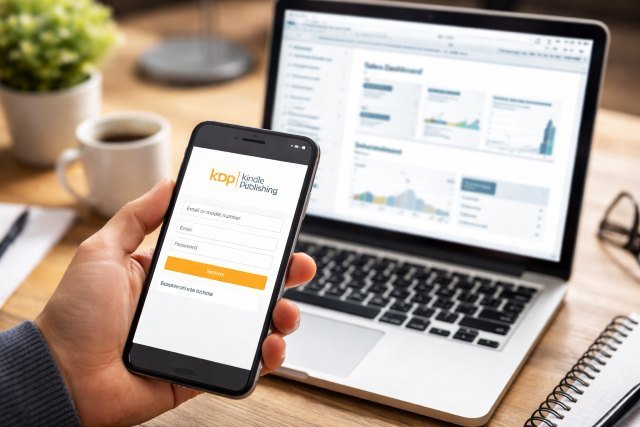
If you’re publishing on Amazon, Kdp Login is the doorway to everything that matters — your Bookshelf, pricing, royalties, reports, tax details, and account settings. Whether you’re checking today’s page reads on your phone or uploading a new paperback from your laptop, knowing the fastest and safest way to sign in saves time (and prevents the “wrong account” headache).
- What Is Kdp Login?
- Kdp Login URL: Where to Sign In
- Kdp Login on Desktop: Step-by-Step (Windows/Mac)
- Kdp Login on Mobile: Access Your Dashboard on Phone or Tablet
- How to Get to the KDP Reports Dashboard After Login
- Common Kdp Login Problems (and Fixes That Actually Work)
- Kdp Login Security: How to Protect Your Publishing Business
- Real-World Tips to Make Kdp Login Faster (Without Cutting Corners)
- KDP Dashboard Overview: What You’ll See After Login
- FAQs
- Conclusion: Kdp Login Made Simple
The good news: Amazon KDP uses your regular Amazon credentials, so you don’t need a separate username for KDP. In this guide, you’ll learn how to access your KDP dashboard on desktop and mobile, fix common sign-in issues, and keep your account secure.
What Is Kdp Login?
Kdp Login is simply signing in to Kindle Direct Publishing (KDP) using the same email/phone number and password you use for your Amazon customer account. Amazon confirms your KDP account is connected to and uses the same credentials as your Amazon account.
Once logged in, you can manage key areas like:
- Your Bookshelf (eBooks, paperbacks, hardcovers)
- Pricing & royalties (KDP can pay up to 70% royalty for eligible eBooks)
- Reports & payments (royalties, orders, KU page reads via the reports area)
- Account settings (tax and payment info inside “Your Account”)
Kdp Login URL: Where to Sign In
The official KDP site is hosted by Amazon. Start here:
- KDP home / sign-in entry: kdp.amazon.com
- Help Center (useful when troubleshooting): KDP Help Center
Tip: After you sign in, your dashboard navigation typically includes Bookshelf, Reports, Marketing, and Account-related sections (labels can vary slightly by region or interface updates).
Kdp Login on Desktop: Step-by-Step (Windows/Mac)
Most creators prefer desktop for uploading interiors/covers and editing details quickly. Here’s the smoothest flow:
- Open your browser (Chrome, Firefox, Edge, or Safari).
- Go to kdp.amazon.com.
- Click Sign in.
- Enter your Amazon email/phone and password (the same ones linked to your KDP account).
- Complete verification if prompted (OTP / 2-step verification).
- You’ll land on the KDP dashboard (often the Bookshelf by default).
Desktop tip that prevents login loops
If you keep getting bounced back to the sign-in page, try an incognito/private window. This avoids stale cookies or being signed into the wrong Amazon profile.
Kdp Login on Mobile: Access Your Dashboard on Phone or Tablet
A lot of authors check performance on the go, especially KU page reads and daily sales. While people often ask about a dedicated app, KDP is primarily accessed via the browser.
Amazon’s community discussions frequently point users to using a mobile browser for KDP tasks, and third-party explanations commonly note there’s no official standalone KDP app (be careful — many apps in stores are courses or unrelated tools).
To log in on mobile:
- Open Chrome/Safari on your phone.
- Visit kdp.amazon.com.
- Tap Sign in.
- Enter your Amazon credentials.
- If the page looks cramped, switch your browser to “Desktop site” mode for complex tasks (like editing content).
Mobile scenario: checking royalties quickly
If you just need a quick glance at performance, go straight to the reports area after login. Amazon notes you can view KDP reports via the reports site or the Reports menu.
How to Get to the KDP Reports Dashboard After Login
Many people sign in successfully but can’t find the reports view. Amazon’s help documentation points to accessing reports via kdpreports.amazon.com or the Reports menu.
If your goal is “check sales now,” bookmark the reports page in your browser after a successful sign-in.
Common Kdp Login Problems (and Fixes That Actually Work)
1) “I logged in, but it’s the wrong KDP account”
This is more common than it sounds — especially if you have multiple Amazon accounts, or you accidentally created another one.
Amazon’s help on sign-in issues mentions that sometimes users accidentally create multiple accounts (even with the same email), and the fix is to sign out and sign back in using the credentials tied to the correct KDP account.
Fix:
Sign out completely from Amazon and KDP, then sign back in with the exact email/phone + password associated with your KDP account.
2) Endless loop back to sign-in page
This is usually a browser session/cookie conflict.
Fixes to try (in order):
- Use an incognito/private window
- Clear cookies/site data for Amazon/KDP
- Disable extensions (especially ad blockers or script blockers)
- Try a different browser
3) Two-step verification code not arriving
This is usually an Amazon account security step (not unique to KDP).
Fix:
Check spam/junk, confirm your phone number/email on your Amazon account, and try an alternate verification method if offered.
4) “Your account is on hold” or “We detected unusual activity”
This can happen if Amazon flags sign-in attempts or suspicious traffic.
Fix:
Use the KDP Help Center and follow the prompts for account security. KDP also highlights account security and avoiding scams in its Help Center alerts.
Kdp Login Security: How to Protect Your Publishing Business
Your KDP dashboard controls payments, tax info, and book listings — so treat it like banking.
Here are practical protections that reduce real risk:
- Use a strong, unique password for the Amazon account tied to KDP.
- Turn on 2-step verification (if available for your account).
- Avoid logging in on shared/public computers.
- Don’t trust messages offering “KDP support” unless you initiate contact through official Amazon pages (scam attempts are common enough that KDP explicitly warns about scams).
Real-World Tips to Make Kdp Login Faster (Without Cutting Corners)
Save the right bookmarks
Create two bookmarks:
- KDP main dashboard: kdp.amazon.com
- Reports view: kdpreports.amazon.com (helpful for daily checks)
Use a password manager
It reduces typos and prevents accidentally signing into the wrong Amazon account.
Keep one “publishing-only” browser profile
If you run ads, buy on Amazon, and publish using the same browser profile, it’s easy to get account sessions crossed. A separate browser profile keeps KDP clean.
KDP Dashboard Overview: What You’ll See After Login
After a successful Kdp Login, your dashboard is the control room for:
- Uploading and managing titles across formats
- Pricing and distribution settings
- Promotions like KDP Select (if eligible)
- Sales and royalties performance via reports
- Account settings including tax and payment info
KDP positions itself as giving authors control over content, pricing, and audience, and it notes books can appear in Amazon stores within about 72 hours (often cited in KDP’s own overview).
FAQs
How do I log in to KDP?
Go to kdp.amazon.com, click Sign in, and use the Amazon credentials connected to your KDP account.
Can I access KDP on my phone?
Yes — use your mobile browser to sign in at kdp.amazon.com. There isn’t a universally recognized official standalone KDP admin app; be cautious with third-party apps that may be courses or unrelated tools.
Where do I see my KDP sales and royalties after login?
Use the Reports menu, or go to the reports site referenced by Amazon’s KDP documentation.
Why does KDP keep logging me out?
Usually it’s cookies, extensions, or being signed into a different Amazon account in the same browser. Try incognito mode, clear cookies, or use a separate browser profile.
What if I accidentally created multiple KDP/Amazon accounts?
Amazon notes multiple accounts can be created by mistake, and the typical fix is to sign out and sign back in with the email/password tied to the correct KDP account.
Conclusion: Kdp Login Made Simple
At its core, Kdp Login is straightforward: you sign in at kdp.amazon.com using the Amazon credentials connected to your KDP account. The key is knowing how to access your dashboard smoothly on both desktop and mobile, and how to troubleshoot common issues like multiple accounts, session loops, or missing verification codes. When you bookmark the right pages, keep your browser sessions clean, and follow KDP’s security guidance, you’ll spend less time fighting login screens — and more time publishing and growing your catalog.