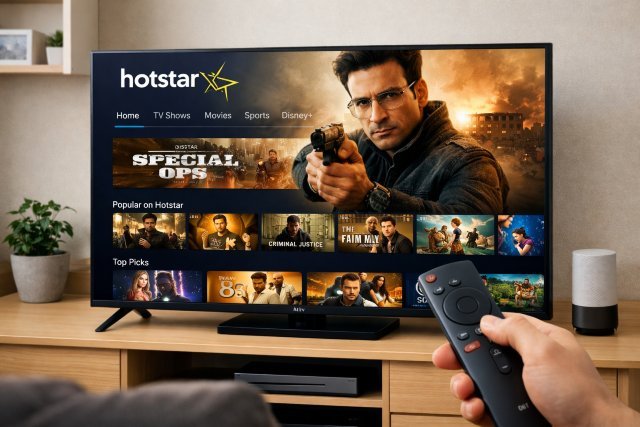
If you’ve searched for Mi-tv. hotstar.com, you’re probably trying to get Hotstar (now branded as JioHotstar in India) running smoothly on your Mi TV — either to sign in on a big screen, fix a login loop, or connect your subscription to the TV app.
- What is Mi-tv. hotstar.com (and why you see it)?
- Before you start: quick compatibility check for Mi TV
- Method 1: Install JioHotstar/Disney+ Hotstar on Mi TV (recommended)
- Method 2: Log in on Mi TV using the official QR / OTP flow
- Method 3: Using Mi-tv. hotstar.com (activation/code method)
- The most common Mi TV Hotstar problems (and fixes that actually work)
- How to get the best Hotstar experience on Mi TV (practical tuning)
- FAQs
- Conclusion: Start with the app, use Mi-tv. hotstar.com when needed
The good news: most Mi TVs run Android TV / Google TV, so the simplest approach is installing the official JioHotstar/Disney+ Hotstar app from the Play Store and logging in with a QR code or phone OTP. Hotstar also maintains TV “connect a device” flows (and Mi-specific portals like mi-tv.hotstar.com) that may appear depending on your TV model, app version, and region.
This guide walks you through every practical method — plus the exact fixes for the common errors people run into on Mi TV.
What is Mi-tv. hotstar.com (and why you see it)?
Mi-tv.hotstar.com is a Hotstar-hosted page associated with watching/signing in on Xiaomi/Mi TV devices. In many setups, it functions as a “TV login” bridge — your TV shows a code (or prompts you to connect), and you confirm it from your phone or browser using that portal.
That said, Hotstar’s login flow has evolved. On many Smart TVs, the modern experience is:
- Open the JioHotstar app on TV
- Choose Login via QR code or Phone number & OTP
- Scan/enter details on your phone
- You’re signed in instantly
So if Mi-tv. hotstar.com isn’t showing a code box anymore (or redirects), don’t worry — you can still log in using the official in-app options.
Before you start: quick compatibility check for Mi TV
Mi TVs come in a few “flavors,” and your steps depend on which one you have:
Mi TV with Google Play Store (Android TV / Google TV)
This is the easiest case: you can download the official app directly from the Play Store. Xiaomi’s own support docs describe installing apps through Google Play on supported Xiaomi TVs.
Mi TV models with JioHotstar/Disney+ Hotstar pre-installed
Some Mi TV variants in India ship with Hotstar pre-installed in the apps list. Xiaomi’s India FAQs for certain Mi TVs explicitly list Disney+ Hotstar among preloaded apps.
If you see it already, jump straight to the login section.
Method 1: Install JioHotstar/Disney+ Hotstar on Mi TV (recommended)
On most Mi TVs, this is the cleanest and most stable approach.
Open Apps → Google Play Store (or Play Store inside Apps).
Search for JioHotstar / Disney+ Hotstar and install it.
Xiaomi’s official guidance for app installation on their TVs is essentially: go to Apps → search in Play Store → install.
After installation, launch the app and proceed to login.
Method 2: Log in on Mi TV using the official QR / OTP flow
This is the login method Hotstar currently documents for Smart TVs.
Inside the JioHotstar app on your Mi TV:
- Select Agree and Continue (if prompted).
- Choose Login / Sign up.
- Pick either QR code or Phone number & OTP.
- If you choose QR: open JioHotstar on your phone (where you’re already logged in) and scan the TV QR.
- If you choose OTP: enter your number and verify the OTP.
In practice, QR login is usually the fastest because it avoids typing and reduces OTP delays.
Real-world tip
If your TV and phone are on the same Wi-Fi network, QR login tends to complete faster and with fewer “something went wrong” screens.
Method 3: Using Mi-tv. hotstar.com (activation/code method)
Some Mi TV users still see a “code on TV” style activation. If your TV app displays an activation code and tells you to visit Mi-tv. hotstar.com, use it exactly as shown:
- On your phone or laptop browser, go to mi-tv.hotstar.com
- Sign in to the same Hotstar/JioHotstar account you want on TV
- Enter the on-screen code from your Mi TV
- Confirm the device connection
Important note about VPN/proxy issues
If you’re using a VPN, proxy, or “unblocker,” Hotstar may refuse device connection on TV-login pages and display an error. Hotstar’s TV connect page explicitly warns about VPN/proxy usage.
If you hit that message, turn off the VPN and try again.
The most common Mi TV Hotstar problems (and fixes that actually work)
1) “App not available on Play Store” on Mi TV
This usually happens due to region settings or device compatibility.
Try these steps:
- Confirm your Mi TV is signed into Google and Play Store works generally.
- Check your TV’s region in settings matches your actual location.
- Update your TV system software (firmware) and try again.
- Search “JioHotstar” and “Disney+ Hotstar” (sometimes naming differs by region).
Hotstar notes that supported devices can change over time, so availability can vary by country and device class.
2) Login loop or “Invalid session / authentication” style errors
If the app opens but keeps kicking you back:
- Force close the app → clear cache → reopen
- Restart the TV
- Ensure date/time on TV is set to automatic
- Update the app if an update is available
If your browser shows “invalid session” on Hotstar pages, signing out and back in is often required.
3) “Looks like you are connecting through a VPN, proxy or unblocker”
Turn off VPN/proxy, then retry the TV connect flow. This is specifically called out on Hotstar’s TV connect page.
4) Buffering, lag, or quality stuck on low resolution
Hotstar publishes recommended minimum sustained download speeds:
- 5.0 Mbps for on-demand streaming (non-4K)
- 8.0 Mbps for live streams
- 25.0 Mbps for 4K
If you’re buffering on live cricket/football, that 8 Mbps live recommendation matters more than the “HD movie” number.
Also, some quality options depend on device DRM/certifications. Hotstar notes that higher resolutions may require Widevine L1 and specific HDCP levels (for example, 4K often needs HDCP 2.2).
5) 4K option not showing on Mi TV
Even if your internet is fast enough, 4K can be limited by:
- your subscription tier,
- whether the title is available in 4K,
- the TV’s HDCP capability,
- and DRM certification requirements.
A quick “sanity check” is to set streaming quality to Auto (if available) and test with a known 4K-supported title.
How to get the best Hotstar experience on Mi TV (practical tuning)
Keep your setup “boringly official”
The most stable path is:
- Install via Play Store (or use the preinstalled app)
- Log in via QR/OTP
- Avoid VPN/proxy
- Keep TV OS and app updated
This reduces random playback and login problems — especially after app updates.
Use Ethernet if live sports matter
Wi-Fi is fine for movies, but live sports is less forgiving. If your Mi TV supports Ethernet, it often delivers more consistent bandwidth and fewer drops during peaks.
Match your expectations to the official bandwidth guidance
If you want a reliable experience:
- Aim above Hotstar’s minimums (especially for live)
- Keep other devices from saturating the network during streaming
- Reboot the router if buffering starts suddenly
FAQs
How do I watch Hotstar on Mi TV?
Install the official JioHotstar/Disney+ Hotstar app from the Play Store (or open it if preinstalled), then log in using the on-screen QR code or phone OTP.
What is Mi-tv. hotstar.com used for?
Mi-tv.hotstar.com is a Hotstar-hosted portal associated with Mi TV device login/activation. Depending on your app version, it may be used to enter a TV activation code or manage TV sign-in.
Why does Hotstar say I’m using a VPN or proxy on Mi TV?
Hotstar’s TV connect flow can block VPN/proxy/unblocker services. Turn off VPN/proxy and retry device connection.
What internet speed do I need for Hotstar on Mi TV?
Hotstar recommends at least 5 Mbps for on-demand (non-4K), 8 Mbps for live streams, and 25 Mbps for 4K content.
Why can’t I select 1080p or 4K on my Mi TV?
Higher resolutions may require supported DRM (like Widevine L1) and HDCP levels (for example, HDCP 2.2 for 4K). If the TV doesn’t meet requirements, the app can limit quality options.
Conclusion: Start with the app, use Mi-tv. hotstar.com when needed
For most people, the fastest way to watch Hotstar on Mi TV is: install/open the official app and sign in via QR code or OTP. If your TV specifically prompts you to use Mi-tv. hotstar.com, follow the on-screen code method — and make sure VPN/proxy services are turned off if the connect page blocks you.
Once you’re logged in, you’ll get the best experience by meeting Hotstar’s recommended bandwidth (especially for live sports and 4K) and ensuring your device supports the required playback protections for higher resolutions.
If you tell me your exact Mi TV model (and whether it has Play Store), I can tailor the steps to your TV’s interface and region.