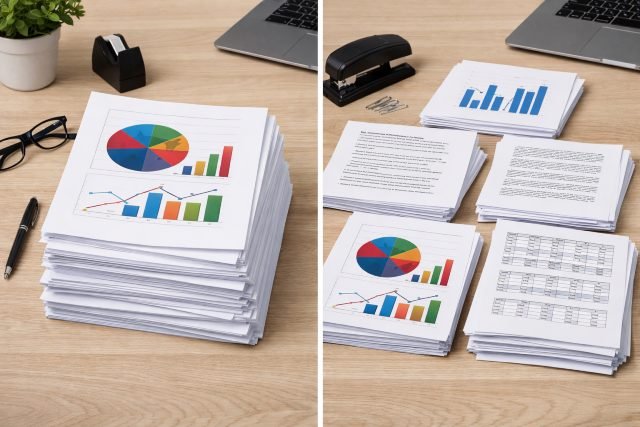
If you’ve ever hit “Print” for a meeting pack and ended up with a chaotic pile of pages, you’ve already met the real-world problem behind Collate VS Uncollated. Collating decides whether your printer outputs complete, ready-to-staple document sets (1–2–3, 1–2–3…) or stacks each page together (all the 1s, then all the 2s, then all the 3s).
- What does “collate” mean in printing?
- What does “uncollated” mean?
- Collate VS Uncollated: what’s the real difference?
- When collated printing is the smart choice
- When uncollated printing is the better move
- Does collating affect print speed and cost?
- The hidden factor: waste, reprints, and “forgotten prints”
- How to choose: a quick decision checklist
- How to set “Collate” on common print workflows
- Collate VS Uncollated in action
- Tips to avoid common collation mistakes
- FAQs
- Conclusion: Collate VS Uncollated — choose based on how you’ll distribute
That one setting affects speed, organization, finishing (stapling/binding), and even paper waste when teams reprint mistakes. And since paper remains a major part of waste streams — paper and paperboard have been the largest component of U.S. municipal solid waste in EPA’s materials data — making print runs efficient still matters.
Below is a detailed, practical guide to help you choose the right option every time — especially for reports, handouts, training packets, and booklets.
What does “collate” mean in printing?
Collated printing means each copy of a multi-page document prints as a complete set in correct order. For example, if you print a 3-page document in 4 copies, collated output is:
1–2–3, 1–2–3, 1–2–3, 1–2–3
This is the setting most people want for reports, proposals, meeting packets, and anything you’ll distribute as “one packet per person.” PaperCut’s printing guide explains collating as the feature that keeps multi-page copies in sequence so you don’t have to manually sort them.
Quick definition for featured
Collate = prints complete document sets in order.
Uncollated = prints stacks of the same page together.
What does “uncollated” mean?
Uncollated printing groups identical pages together. Using the same example (3 pages, 4 copies), uncollated output is:
1–1–1–1, 2–2–2–2, 3–3–3–3
Uncollated is useful when you want to assemble sets later, insert different sheets into packets, or run finishing steps by page (like printing page 1 on colored paper).
Collate VS Uncollated: what’s the real difference?
The simplest way to think about Collate VS Uncollated is:
Do you want finished packets immediately — or do you want page stacks for later assembly?
Here’s a comparison you can scan quickly:
| Factor | Collated | Uncollated |
|---|---|---|
| Best for | Reports, booklets, training packets | Single-page handouts, custom assembly |
| Output | Complete sets in order | Page stacks grouped together |
| Manual sorting | Minimal | Usually required |
| Works well with stapling/binding | Yes | Not until you sort/assemble |
| Ideal when pages have different paper types | Sometimes (depends) | Often yes |
When collated printing is the smart choice
1) Reports and meeting packets
If you’re printing quarterly reports, board packs, agenda packets, or client proposals, collated printing prevents the classic “who has page 7?” moment. It also makes stapling or adding a cover page painless because each set is already in order.
Real-world scenario:
You print 25 copies of a 12-page report for a leadership meeting. With collate on, you can pick up 25 neat sets, staple each once, and you’re done. With collate off, you’re standing at a table sorting 300 pages while people walk in.
2) Training manuals and onboarding handouts
Training materials often have a natural sequence (intro → steps → exercises). Collation keeps the flow intact and reduces the risk of someone receiving pages out of order.
3) Booklets and multi-page handouts
If you’re making booklets (or anything that will be folded, saddle-stitched, spiral-bound, or stapled), collate is usually the correct pre-finishing step. Many print workflows assume pages are already in correct order before binding.
4) Classroom packets and exam sets
Educators often print multi-page exam packets or worksheets. Collate keeps each student’s packet intact and reduces mix-ups.
When uncollated printing is the better move
1) One-page flyers, sign-in sheets, and simple handouts
If it’s a single page, collation doesn’t matter — every page is identical. Uncollated is effectively the same result, and many teams leave it off by habit for quick jobs.
2) You’re inserting custom pages into packets
Sometimes you want page 1 printed separately because it’s a cover sheet, a divider, or branded paper. Uncollated printing gives you a clean stack of page 1, making it easy to insert it into each packet later.
Example:
You’re printing a 10-page workshop packet, but page 1 is a thick color cover and page 10 is a feedback form on yellow paper. Uncollated printing lets you run each page group on the right stock, then assemble sets deliberately.
3) Finishing is done later by someone else
In offices and print shops, it’s common to print uncollated stacks and have a finishing team collate, staple, hole-punch, or bind in a controlled workflow — especially for high-volume jobs.
Does collating affect print speed and cost?
It can — depending on your printer and job size.
Speed: Collating can slow down some printers because the device has to manage page order across multiple copies, especially if memory is limited or if the job is very large. PaperCut notes collating is designed to save human time (sorting) even if device processing changes slightly.
Cost: The paper and toner cost per page is usually the same either way. The “real cost difference” tends to come from labor time, mistakes, and reprints — especially in busy offices where mis-sorted packets lead to reprinting entire sets.
And zooming out: office printing volume still adds up. A Minnesota state environmental agency publication cites an estimate of 10,000 sheets of copy paper per office worker per year, which shows how small efficiency gains can scale across a team.
The hidden factor: waste, reprints, and “forgotten prints”
Even though collate vs uncollated is a “simple checkbox,” the downstream waste can be significant when people reprint jobs because sets were mixed, missing pages, or left behind.
Paper waste matters because paper is a major material category in waste streams, and office paper is one of the most common components of office waste.
If your workplace also struggles with abandoned print jobs, secure print release (also called “pull printing”) is a common fix in managed print environments; PaperCut describes secure hold-and-release workflows as a way to prevent sensitive documents and reduce print-related risk.
Practical takeaway: Collate correctly + reduce abandoned jobs = fewer reprints, fewer missing pages, less waste.
How to choose: a quick decision checklist
Use collated if:
- You’re printing multi-page sets for distribution (reports, packets, manuals).
- You plan to staple, bind, or fold into booklets.
- You want “grab-and-go” copies with minimal handling.
Use uncollated if:
- It’s a one-page job (flyers, sign-in sheets).
- You’re printing different pages on different paper types.
- You’ll assemble packets later or insert custom sheets.
How to set “Collate” on common print workflows
Printing from Microsoft Word / Google Docs / PDF viewers
Most print dialogs show a “Collate” checkbox when you print multiple copies. If you don’t see it, it may depend on your driver or the app you’re printing from; some users report collate options appearing in certain applications (like Word) even when it’s missing elsewhere.
Printer driver vs application setting
If you see two “collate” options (one in the app and one in printer properties), prefer:
- The application setting for simple office jobs
- The printer driver setting when you want consistent behavior across apps
Tip: If output looks wrong, disable one of the two (avoid “double-handling” the same setting).
Collate VS Uncollated in action
Example A: 20 copies of a 6-page report
Collated: You pick up 20 complete sets, staple each once, distribute.
Uncollated: You sort 120 pages into sets before stapling (or risk mixing pages).
Winner: Collated.
Example B: 200 single-page event flyers
Collation is irrelevant because it’s one page.
Winner: Either, but uncollated is typical.
Example C: 50 workshop packets with a color cover
You want the cover on cardstock, the inside pages on regular paper.
Winner: Uncollated (print cover separately, then inner pages, then assemble).
Example D: Booklets to be saddle-stitched
Booklets usually need pages in order to finish cleanly.
Winner: Collated (or shop-managed collation as part of finishing).
Tips to avoid common collation mistakes
- Preview page count before printing: Many “missing page” problems are actually page-range settings (like printing pages 2–6 by accident).
- Run a 1-copy test: Catch margin, orientation, and duplex issues before printing 50 sets.
- Match duplex + collation to finishing: If you’re stapling top-left, confirm the page orientation comes out correctly when duplexing.
- Use slip sheets/dividers intentionally: If you need section dividers, uncollated workflows can help you insert them consistently.
FAQs
What is the difference between collated and uncollated printing?
Collated printing produces complete document sets in order (1–2–3, 1–2–3). Uncollated printing groups identical pages together (1–1–1, 2–2–2).
Should I collate when printing multiple copies?
Yes — if you’re distributing multi-page packets or binding/stapling. Collating saves manual sorting time and reduces the risk of mixed pages.
When should I use uncollated printing?
Use uncollated printing for single-page handouts or when you need page stacks for custom assembly — like printing a cover page on different paper stock.
Does collating use more paper or ink?
No. Collating changes the order pages are delivered, not the number of pages printed. The biggest “cost” difference is usually labor time and reprints due to sorting mistakes.
Why does my printer not show the collate option?
Some printer drivers or apps don’t display collate settings consistently. In some cases, printing from an application like Microsoft Word exposes the option when it’s not visible elsewhere.
Conclusion: Collate VS Uncollated — choose based on how you’ll distribute
The smartest Collate VS Uncollated decision comes down to what happens after the pages leave the printer. If you need ready-to-hand-out packets — reports, manuals, meeting packs, and booklets — collated is usually the cleanest, fastest workflow. If you need page stacks for special paper, inserts, or controlled assembly, uncollated can be the better operational choice.
And in workplaces where printing adds up quickly — thousands of sheets per person per year in some estimates — small workflow improvements can save real time, money, and waste.