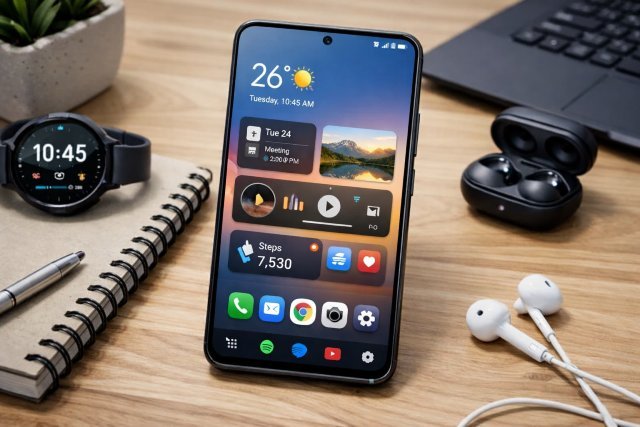
Your Samsung phone is more than a device — it’s a workspace, a dashboard, and a mini assistant you carry everywhere. Yet, most people never optimize it beyond a wallpaper and a few apps. The truth is, the way your home screen is laid out directly impacts how fast you access tools, how focused you stay, and how “clean” your digital life feels.
- Why Your Samsung Home Screen Layout Matters
- Samsung Phone Layout Ideas: Start With the Right Foundation
- The 3 Layout Styles That Work Best on Samsung
- Samsung Phone Layout Ideas for a Perfect Dock Setup
- The Secret Weapon: Samsung’s Good Lock + Home Up (Advanced Layout Ideas)
- Featured Snippet Definition: What Are Samsung Phone Layout Ideas?
- The Best Widget Layout Ideas for Samsung Phones
- Samsung Phone Layout Ideas That Reduce Clutter Instantly
- Folder Layout Ideas That Feel Modern
- One-Hand Friendly Layout Ideas for Samsung Galaxy Phones
- Aesthetic Samsung Phone Layout Ideas: How to Make Everything Match
- Smart Layout Ideas Using Samsung Routines Widget
- FAQ: Samsung Phone Layout Ideas
- Conclusion: Build a Samsung Home Screen You Actually Love Using Samsung Phone Layout Ideas
This guide is built to give you the best Samsung Phone Layout Ideas — not generic Android tips, but strategies designed specifically for Samsung Galaxy phones running One UI, including features like Good Lock, Home Up, Edge Panels, Widgets, Routines, and Material You-style theming. Samsung has made home screen personalization so powerful that you can build a layout that looks stunning and works like a productivity system.
Whether you want a minimalist home screen, a productivity powerhouse, or something aesthetic and “Pinterest-level,” this is the ultimate roadmap.
Why Your Samsung Home Screen Layout Matters
A well-organized home screen reduces friction. Every extra swipe, search, or scroll becomes a tiny distraction that adds up across the day. That’s why the best layouts are not just beautiful — they’re functional systems.
Samsung’s One UI is designed for usability, especially with larger screens and one-handed operation. This means you can build layouts that reduce thumb travel, prioritize key actions, and keep your most-used tools within reach.
The goal isn’t perfection — it’s efficiency + clarity + comfort.
Samsung Phone Layout Ideas: Start With the Right Foundation
Before you start rearranging apps, you need a base strategy. Think of your home screen like a desk: if you don’t decide what belongs there, clutter always returns.
Step 1: Decide Your “Home Screen Purpose”
Your home screen should match your personality and lifestyle. Ask yourself:
Are you focused on productivity, aesthetics, simplicity, or speed?
Do you need work tools instantly available?
Do you open the same 5 apps daily, or 20 apps?
Once you decide your purpose, your layout becomes easier to build and maintain.
The 3 Layout Styles That Work Best on Samsung
Samsung layouts usually fall into three high-performing styles:
1) Minimalist Layout (Best for Focus)
This is the cleanest approach and ideal if you want fewer distractions.
You keep:
A single widget (calendar, weather, or routine)
Only the most-used apps
A clean dock
This setup works especially well with Samsung’s Edge Panels, because you can hide secondary apps there while keeping the home screen clean.
2) Productivity Dashboard Layout (Best for Daily Efficiency)
This layout turns your phone into a control center.
You use:
Calendar widget
Task widget
Samsung Routines widget
Search bar + smart folders
One UI makes this extremely powerful because Samsung has productivity-focused widgets and quick tools built into the system experience.
3) Aesthetic Layout (Best for Visual Harmony)
This layout focuses on theme consistency.
You use:
Icon packs or Samsung themes
Minimal widgets
Wallpaper-driven color palettes
Material You-inspired matching
Android’s system-level design direction (Material You) emphasizes cohesive color experiences, which pairs beautifully with Samsung themes and icon customization.
Samsung Phone Layout Ideas for a Perfect Dock Setup
The dock is the most important real estate on your Samsung home screen. If your dock is wrong, your whole layout feels slow.
The Ideal Dock Rule
Your dock should contain apps you use 10+ times per day, not apps you “might” use.
Best dock categories:
Phone or Contacts
Messages
Browser
Camera
One high-frequency utility (Maps, Notes, Spotify)
Samsung users often underestimate the dock because they rely on the app drawer. But a dock-first mindset makes your phone feel instantly faster.
The Secret Weapon: Samsung’s Good Lock + Home Up (Advanced Layout Ideas)
If you want your Samsung home screen to look truly unique, Good Lock is the game-changer.
Samsung describes Good Lock as its “ultimate personalization tool,” and the Home Up module is specifically designed to expand home screen customization. It allows much deeper control than standard One UI settings.
What You Can Do With Home Up That Most People Don’t Know
With the redesigned Home Up module, you can:
Change grid size and spacing
Adjust folder and app list behavior
Unlock advanced customization options
Create layouts that don’t feel like “default Samsung” anymore
If your goal is Pinterest-worthy layouts or ultra-productive setups, Good Lock + Home Up is essential.
Featured Snippet Definition: What Are Samsung Phone Layout Ideas?
Samsung Phone Layout Ideas are design strategies and customization techniques used to organize apps, widgets, and folders on Samsung Galaxy home screens for better productivity, aesthetics, and usability.
The Best Widget Layout Ideas for Samsung Phones
Widgets are the heart of modern home screen design. Samsung phones support widgets extremely well, and One UI makes resizing and stacking easier than ever.
Best Widget-Based Layout Structures
The “Top Widget + Bottom Apps” Layout
This is perfect if you want balance.
The top half is your information panel:
Calendar
Weather
Tasks
The bottom half is action apps:
Mail
Messages
Browser
Camera
This layout gives you instant context (what’s happening today) without clutter.
The “Widget Page + App Page” Layout
This is one of the cleanest setups.
Page 1: Widgets only (dashboard)
Page 2: Apps and folders
Page 3: Entertainment or social
Samsung One UI makes this feel natural because page swiping is smooth and Edge Panels can hold everything else.
Samsung Phone Layout Ideas That Reduce Clutter Instantly
If your home screen is messy, the problem is rarely “too many apps.”
It’s usually:
Too many pages
Too many icons visible
No clear grouping system
A decluttered home screen makes navigation faster and your phone more calming to use. Android users often report that clutter makes frequently used apps harder to find across multiple pages.
The “Rule of 12”
Keep no more than 12 app icons visible per page.
Anything beyond that should go in:
Folders
Edge Panels
App drawer
Search
Folder Layout Ideas That Feel Modern
Folders used to feel outdated, but modern folder design is clean and fast — especially on One UI.
Best Folder Systems for Samsung Phones
Instead of “Games” and “Social,” build folders based on behavior:
Daily Essentials
Work Tools
Money & Bills
Health & Fitness
Travel & Navigation
Creative Apps
This is more natural because it matches your real-life context.
And yes — folders reduce clutter while improving speed, especially when your most-used apps are grouped logically.
One-Hand Friendly Layout Ideas for Samsung Galaxy Phones
Samsung phones are large, and One UI is built around thumb reach.
Thumb Zone Layout Strategy
Put your most-tapped apps and widgets in the lower half of the screen.
This is especially useful for:
Fold devices
Ultra models
Max-size Galaxy devices
Samsung’s One UI design philosophy supports this idea strongly, and many productivity-focused layouts intentionally shift interaction zones downward.
Aesthetic Samsung Phone Layout Ideas: How to Make Everything Match
Aesthetic layouts are about harmony.
If your home screen feels “off,” it’s usually because:
Your wallpaper colors don’t match icons
Widgets look inconsistent
Fonts don’t align
Spacing feels crowded
How to Fix That Quickly
Pick one “design anchor”:
Wallpaper
Theme color
Icon style
Then adjust everything around it.
Android’s Material You concept supports cohesive, user-owned experiences driven by color and fluidity. You can mimic this on Samsung using theme tools and icon matching.
Smart Layout Ideas Using Samsung Routines Widget
If you haven’t used the Samsung Routines widget, you’re missing one of the most powerful features for a “smart” home screen.
A productivity-focused One UI home screen setup often uses the Routines widget as a central element, because it turns your home screen into an automation launcher.
Examples of Useful Routine Buttons
“Work Mode”: Silent + focus apps + Wi-Fi on
“Gym Mode”: Spotify + fitness tracking + Do Not Disturb
“Sleep Mode”: Reduce brightness + bedtime apps
Instead of opening apps manually, you trigger a full context switch with one tap.
FAQ: Samsung Phone Layout Ideas
What is the best Samsung home screen layout?
The best Samsung home screen layout is one that matches your daily behavior. Most users benefit from a clean dock, one main widget page, and folders organized by real-life needs.
How do I make my Samsung home screen look aesthetic?
Use a matching wallpaper, consistent icon style, and minimal widgets. Samsung themes and Material You-inspired color matching help create a cohesive look.
What app helps customize Samsung home screen layouts?
Samsung’s Good Lock app, especially the Home Up module, allows deeper customization than standard One UI settings.
How do I reduce clutter on my Samsung phone?
Limit visible icons per page, group apps into behavior-based folders, and use Edge Panels or search for secondary apps. Decluttering improves access speed and reduces distraction.
Conclusion: Build a Samsung Home Screen You Actually Love Using Samsung Phone Layout Ideas
A perfect home screen isn’t about copying someone else’s layout — it’s about designing a system that matches your life. The best Samsung Phone Layout Ideas combine clarity, speed, and style.
Start with one strong foundation:
A smart dock
One purpose-driven widget setup
Clean folders
Thumb-friendly positioning
Then level up with Good Lock + Home Up for custom layouts that feel personal and premium. Samsung’s ecosystem is one of the most customization-friendly experiences in Android, and with a little structure, your phone can become both beautiful and effortless to use.