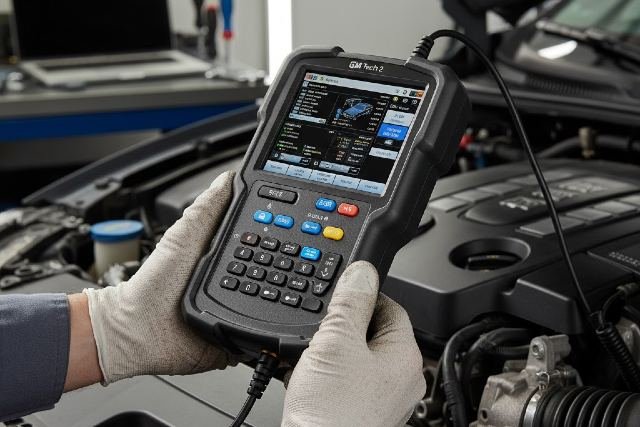
If you own a GM vehicle or work on one regularly, the GM Tech 2 Scanner is one of the most powerful diagnostic tools you can use. In the first 100 words, it’s important to highlight that this scanner offers dealer-level diagnostics, module programming, bi-directional controls, and advanced troubleshooting, making it essential for mechanics, auto technicians, and DIY GM enthusiasts.
Although GM has shifted to newer platforms like GDS2 and MDI, the Tech 2 remains fully supported for most GM vehicles from 1992–2013 — and partially beyond. This guide walks you through everything you need to know: features, compatibility, what it can program, how to use it, and whether it’s still worth buying today.
What Is the GM Tech 2 Scanner?
The GM Tech 2 Scanner is an OEM diagnostic tool originally developed for General Motors dealerships. It allows users to:
- Read and clear diagnostic trouble codes (DTCs)
- Program modules on supported vehicles
- Perform bi-directional tests
- Access advanced troubleshooting menus
- Re-learn, reset, and configure vehicle components
It uses a rugged handheld design with a large screen and connects via OBD1 or OBD2 — depending on vehicle year.
Why the GM Tech 2 Scanner Is Still Popular Today
Even though it’s considered a legacy tool, thousands of GM technicians still rely on it for:
Wide Vehicle Coverage (1992–2013)
Works with GM, Chevrolet, GMC, Cadillac, Pontiac, Oldsmobile, Saab, Saturn, Hummer, and Opel.
Dealer-Level Features
The same functions used by GM dealership technicians for decades.
Better Module Access
Some older vehicles require a Tech 2 for complete diagnostics that newer scanners cannot perform.
Affordable Alternatives
Tech 2 clones make ownership more accessible to DIY mechanics.
GM Tech 2 Scanner Vehicle Compatibility
Here’s a quick reference chart:
| GM Brand | Supported Years |
|---|---|
| Chevrolet | 1992–2013 |
| GMC | 1992–2013 |
| Cadillac | 1992–2013 |
| Pontiac | 1992–2010 |
| Buick | 1992–2013 |
| Saab | 1998–2012 |
| Hummer | 2000–2010 |
| Saturn | 1996–2010 |
| Opel | Selected models |
Note: For vehicles 2014 and newer, GM uses GDS2 and MDI/MDI2 instead.
GM Tech 2 Scanner: Key Features and Functions
This tool is loaded with capabilities that go far beyond reading basic codes.
1. Full Diagnostic Scanning
You can scan nearly every module, including:
- ECM
- BCM
- TCM
- ABS
- Airbag/SRS
- HVAC
- Instrument cluster
- Transfer case
- Steering modules
Tech 2 provides live data, freeze-frame data, and factory-level fault descriptions.
2. Programming & Reprogramming Modules
The GM Tech 2 allows certain modules to be programmed directly:
Key programming (selected vehicles)
ABS module setup
Theft Deterrent relearn
Body control module setup
Radio programming (depending on generation)
Note: For many functions, you must connect the Tech 2 to the TIS2000 or GM SPS software.
3. Bi-Directional Controls
This allows you to test components by sending commands from the scanner.
Examples include:
- Fuel pump activation
- Cooling fan engagement
- Injector balance tests
- Cylinder cut-out tests
- Actuator tests
- ABS motor and solenoid cycling
This is critical for diagnosing no-start, misfire, and fuel delivery issues.
4. Security System Functions
The Tech 2 can perform:
- Passlock relearn
- Key relearn
- Immobilizer setup
- Security system resets
Particularly helpful for swapping BCM or ECM units.
5. ABS, Airbag, and Transmission Diagnostics
The scanner can access systems cheaper tools can’t, including:
- Airbag deployment history
- Brake control system data
- Transmission line pressure tests
- Clutch apply counters
- Solenoid testing
6. Live Data Streaming
View real-time metrics such as:
- Fuel trims
- MAF readings
- Coolant temp
- O2 sensor activity
- Timing advance
- RPM data
- Transmission temp
Live data helps pinpoint failing sensors or modules instantly.
GM Tech 2 Scanner vs. Other GM Diagnostic Tools
| Tool | Best For | Years Covered | Price |
|---|---|---|---|
| Tech 2 | Older GM vehicles | 1992–2013 | $300–$1,200 |
| Tech2Win | PC-based emulator | 2007–2013 | Requires MDI |
| MDI / MDI2 | Newer GM | 2014+ | $600–$1,800 |
| GDS2 | GM dealership software | 2014+ | Subscription |
Best choice for older vehicles: Tech 2
Best choice for new vehicles: MDI2 + GDS2
How to Use the GM Tech 2 Scanner (Step-by-Step)
1. Connect the Tool
- Plug into the OBD2 port (under dashboard).
- Turn ignition to ON (engine off).
- Select the vehicle year and model.
2. Enter Diagnostic Mode
- Choose diagnostics from the main menu.
- Select the system you want to scan (ECM, BCM, etc.).
- Read stored and pending trouble codes.
3. Run Live Data
- View sensor values.
- Compare with factory specifications.
- Watch for irregularities during idle and acceleration.
4. Perform Bi-Directional Tests
Examples:
- Command fans ON/OFF
- Activate fuel pump
- Cycle ABS solenoids
These tests help confirm whether a component is working.
5. Programming Modules
If programming is needed:
- Connect to TIS2000 or GM SPS
- Follow on-screen prompts
- Perform relearn procedures (Passlock, crankshaft learn, etc.)
GM Tech 2 Scanner: Pros and Cons
Pros
- Dealer-level diagnostic access
- Excellent for older GM vehicles
- Wide module coverage
- Advanced testing functions
- Affordable clone versions
Cons
- Outdated interface
- No native support for 2014+ vehicles
- Requires PC software for advanced programming
- Some clones have reliability issues
What Can the GM Tech 2 Scanner Program?
This is one of the most frequently asked questions.
Key Programming
(Older GM vehicles)
Body Control Module (BCM) Setup
After replacing a BCM, the Tech 2 guides relearn procedures.
Crankshaft Variation Relearn
Critical after engine repair.
Tire Pressure Monitor (TPMS) Setup
Relearns sensor locations.
ABS Configuration
Sets up new ABS modules.
Radio Unlock (On Compatible Models)
Helpful during stereo replacement.
GM Tech 2 Clone vs. Original – What’s the Difference?
Original GM Tech 2
- Highest reliability
- OEM-tested hardware
- Expensive ($800–$2,500)
Clone Versions
- Much cheaper ($250–$400)
- Still very functional
- Quality varies between sellers
- Some clones require adjustments out of the box
Pro Tip: Always buy from reputable suppliers and avoid ultra-cheap listings.
GM Tech 2 Accessories You May Need
Candi Module (for GM CAN vehicles 2003–2006)
OBD1 adapters for older cars
TIS2000 software / SPS subscription
USB-to-serial adapter (for modern PCs)
Memory cards for storing vehicle data
Case Study: Diagnosing a 2009 GMC Sierra
A customer reported:
- Harsh shifting
- ABS light
- No DTCs showing on basic scanners
Using a GM Tech 2:
- Accessed transmission line pressure
- Detected erratic solenoid behavior
- Performed bi-directional solenoid test
- Confirmed TCC solenoid failure
Result: Repair completed in under an hour thanks to the Tech 2’s advanced access.
FAQs About the GM Tech 2 Scanner
1. Is the GM Tech 2 still worth buying?
Yes — if you work on GM vehicles made between 1992–2013.
2. Can the GM Tech 2 program keys?
Yes, on many older GM models.
3. Can the Tech 2 work on new GM vehicles?
It can perform some diagnostics up to 2014, but programming requires MDI2.
4. Do I need the Candi module?
Yes — for CAN-equipped models (mostly 2003+).
5. Is a clone Tech 2 reliable?
Most mid-priced clones work very well, but avoid low-cost versions.
Conclusion
The GM Tech 2 Scanner remains one of the most reliable and powerful tools for diagnosing and programming GM vehicles from 1992 to 2013. With its comprehensive module access, bi-directional testing, and deep troubleshooting abilities, it’s essential for anyone serious about GM vehicle repair. Whether you’re a professional tech, a shop owner, or a DIY enthusiast, the Tech 2 delivers dealership-level performance at an accessible price.
Mastering this tool will give you unparalleled control over your GM’s diagnostics, repairs, and programming — making it a smart investment for any garage.